
What you see
NexLev MCP says you're on the Free plan, or returns "access denied", even though you've paid.
Why it happens
When you connect NexLev MCP in Claude or ChatGPT, it connects to a Google account in your browser profile. If only one Google account is signed in, it connects that one automatically. If there are several, it connects whichever one you choose. Either way, it may not be the account you bought NexLev with.
You don't need to be signed in to the NexLev dashboard to connect. The connection only depends on the Google account used when you connect.
How to fix it
Choose the AI assistant you connected NexLev MCP to.
Step 1: Disconnect NexLev if it's connected to the wrong account
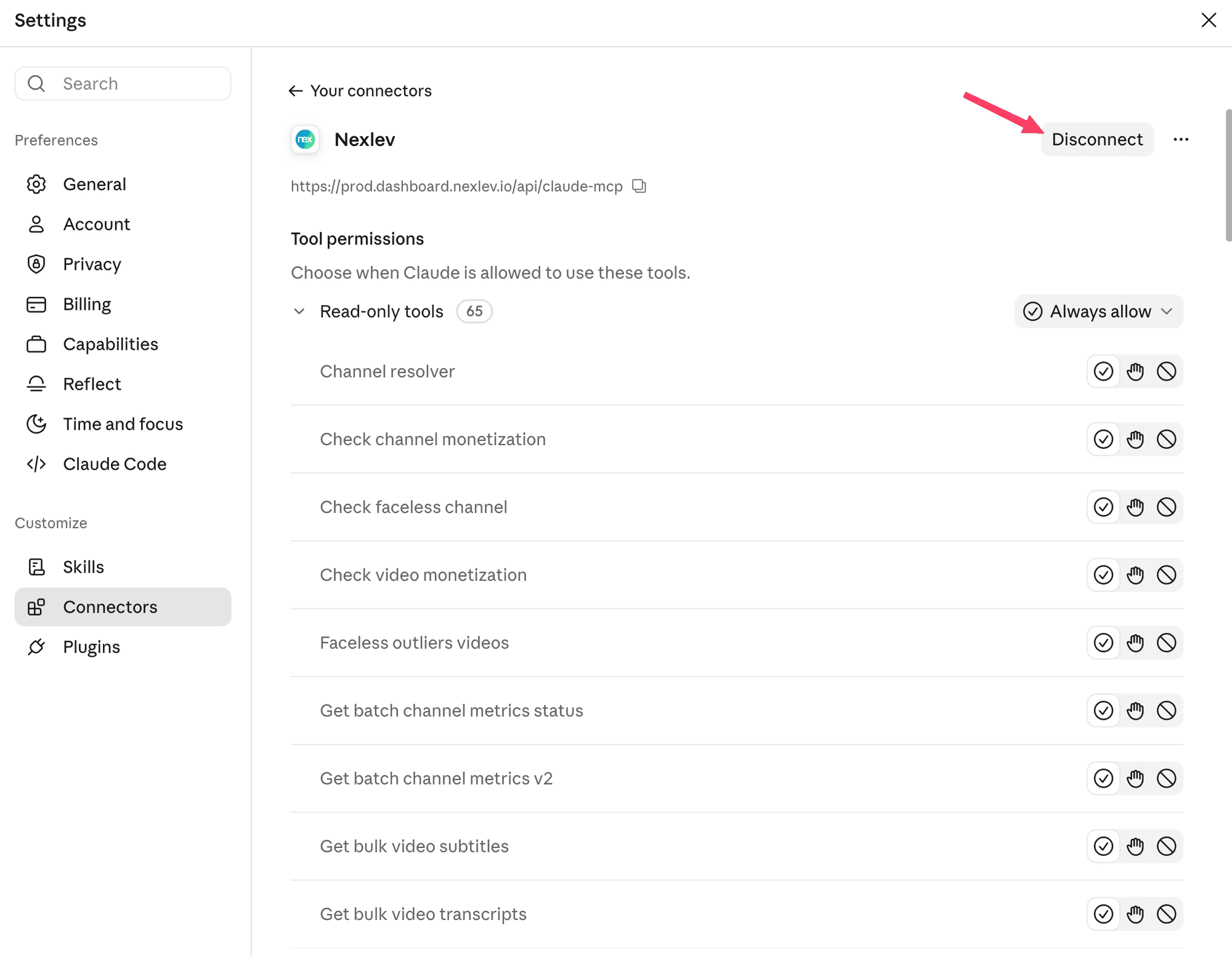
If NexLev is already connected in Claude with an account that has no NexLev subscription, disconnect it first. If you haven't connected NexLev yet, skip to Step 2.
Open Claude Settings and go to Connectors.
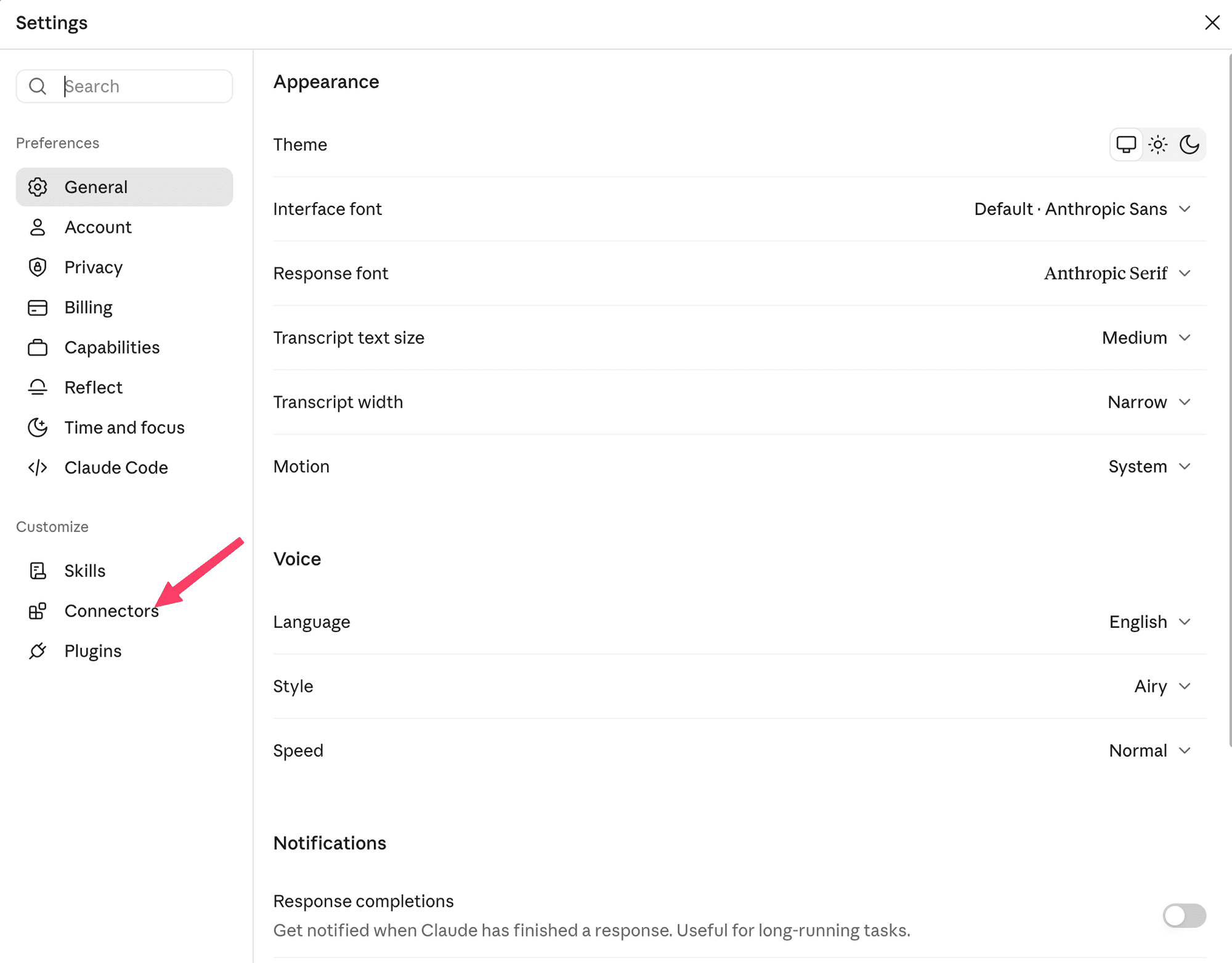
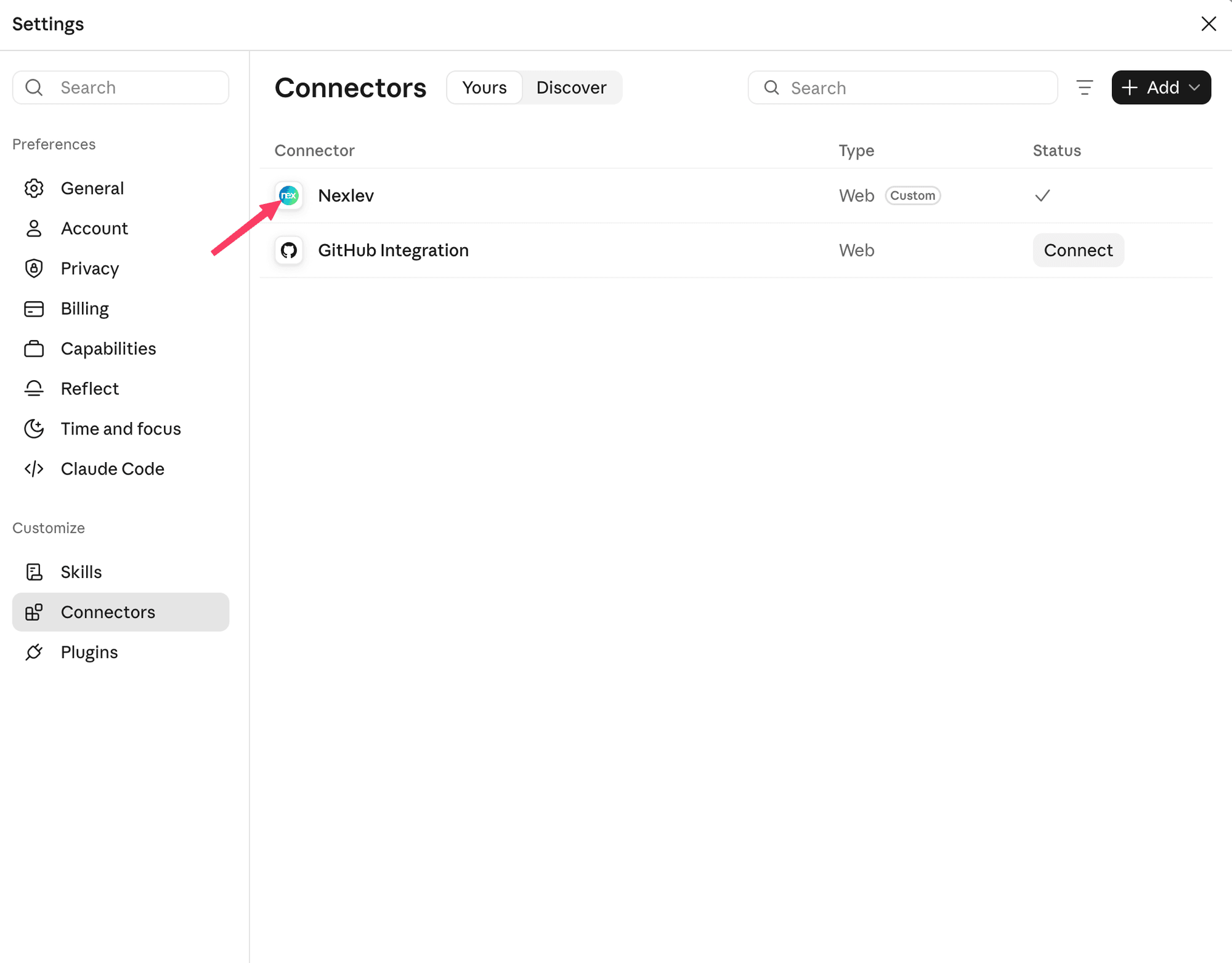
Choose Nexlev from your connectors.
Click Disconnect.
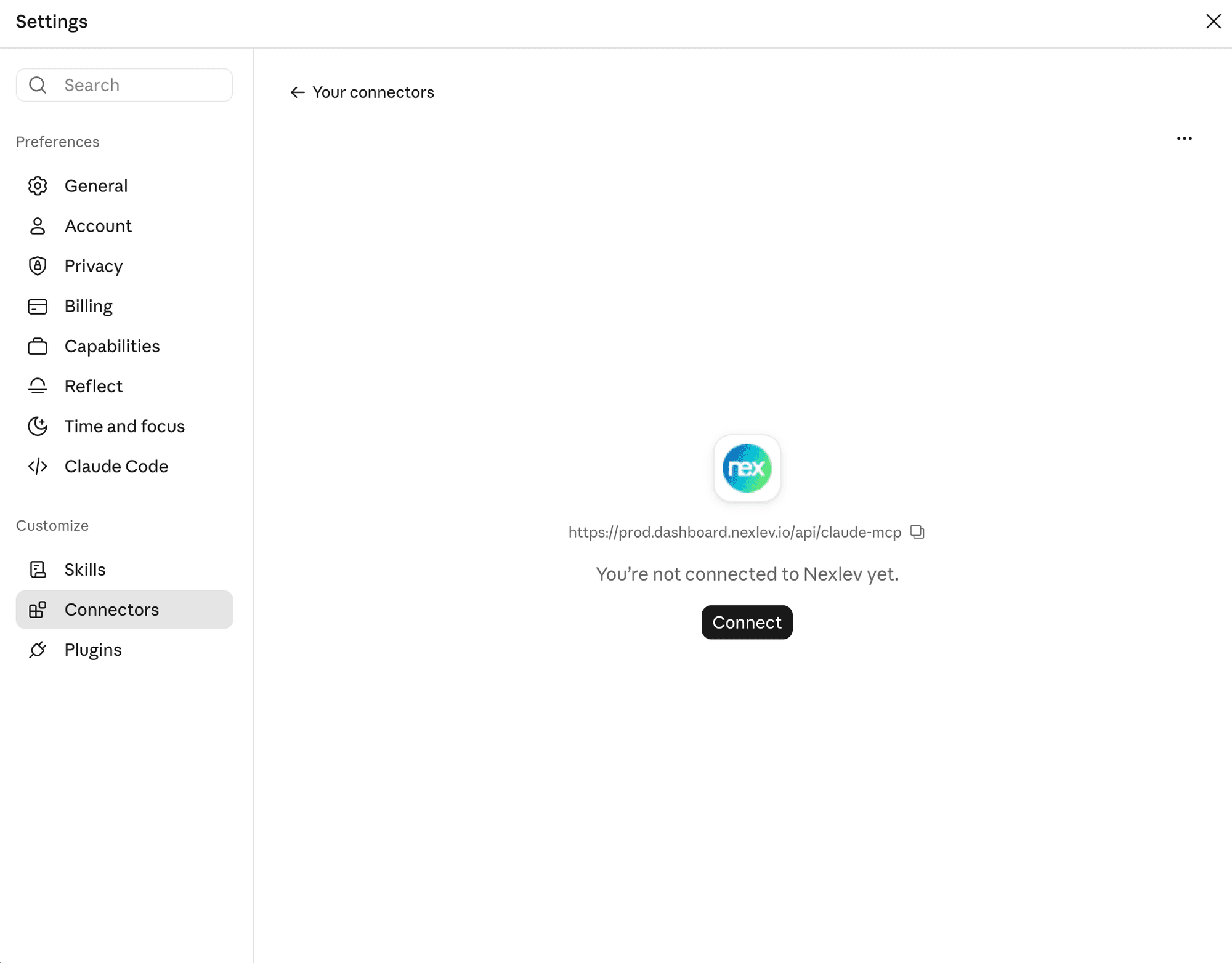
Step 2: Click Connect
If NexLev isn't in your connectors list, add it first by following Steps 1–3 of the Claude setup in the MCP Quickstart.
Then open Nexlev in Settings → Connectors and click Connect.
What happens next depends on how many Google accounts are signed in to your browser profile.
Scenario 1
Only one Google account is signed in to your browser profile
NexLev connects to that account automatically. You won't see an account picker.
To check whether that account has a NexLev subscription or is a free account, sign in to dashboard.nexlev.io with it and check whether it has an active subscription (see how to check your plan). If it's a free account, disconnect NexLev, add your purchase account to the browser profile, and connect again. You'll then get the account picker from Scenario 2.
Scenario 2
Several Google accounts are signed in to your browser profile
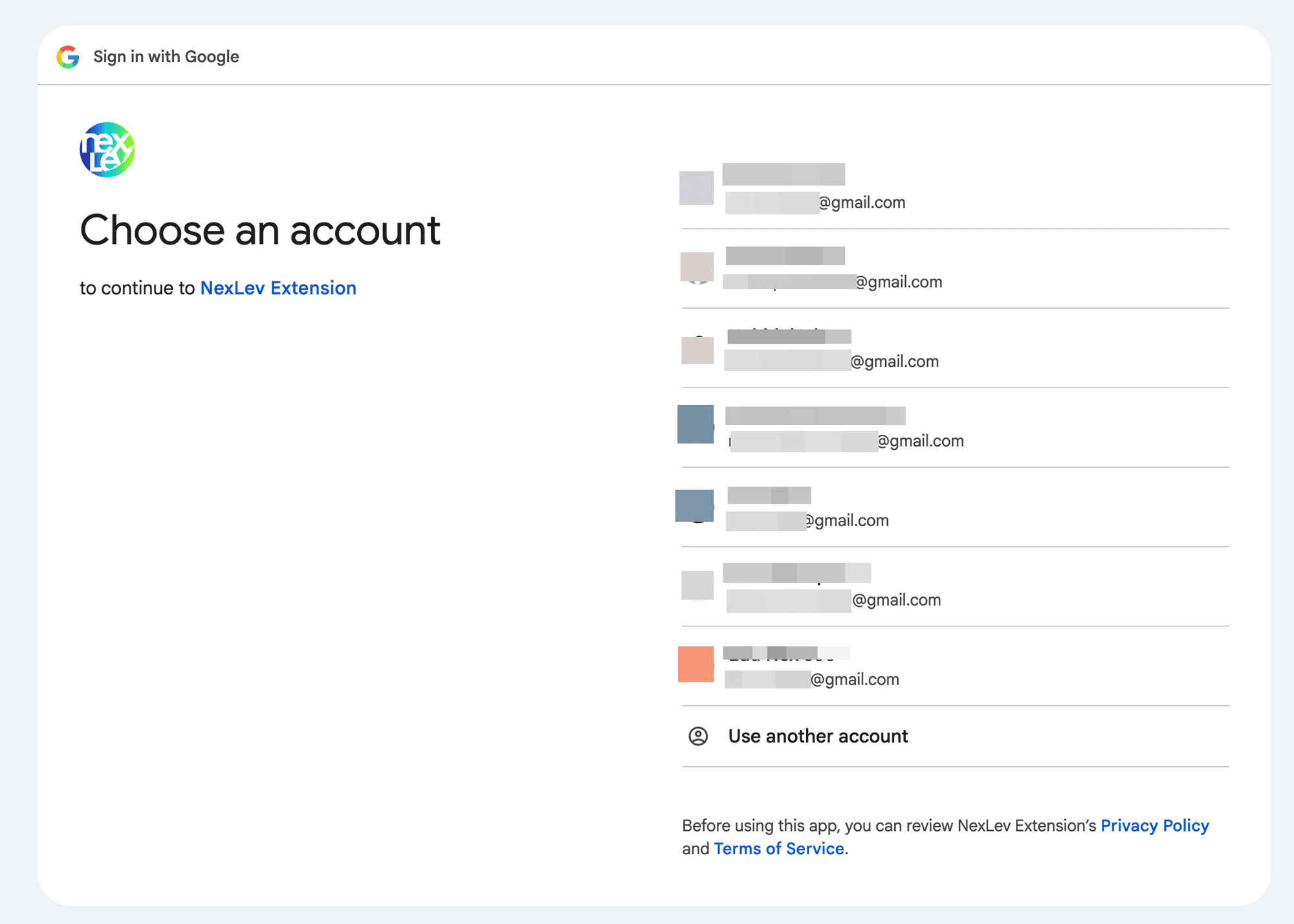
Google asks you to Choose an account. Pick the account you bought your NexLev subscription with.
Once NexLev is connected, finish the setup from Step 5 of the Claude setup.
Step 1: Uninstall NexLev if it's installed with the wrong account
If NexLev is already installed in ChatGPT with an account that has no NexLev subscription, uninstall it first. If you haven't added NexLev yet, skip to Step 2.
In ChatGPT, click your profile in the bottom-left corner and choose Settings.
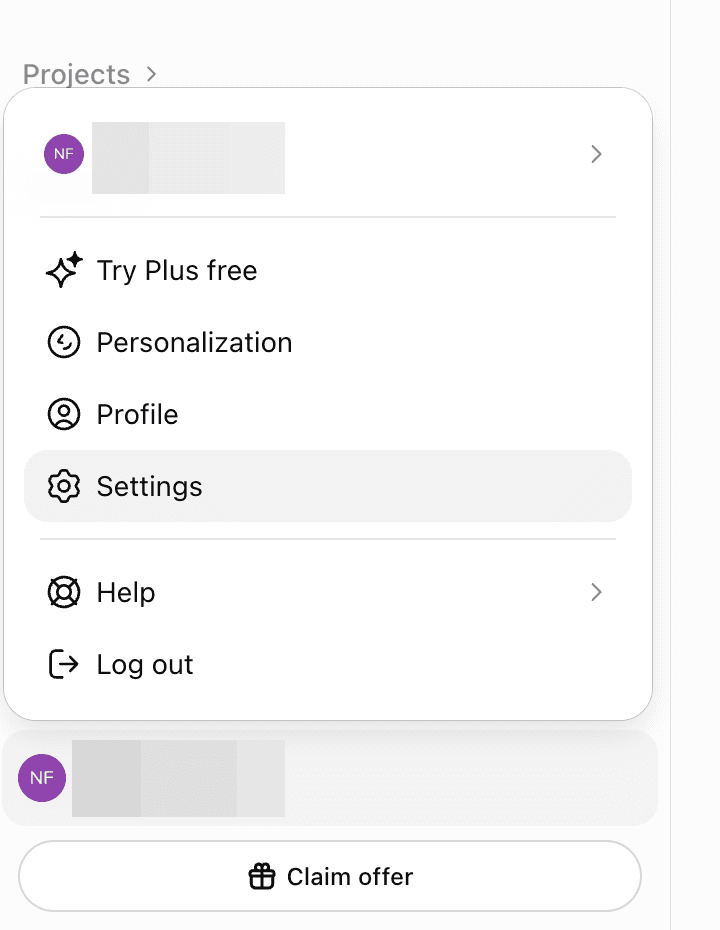
In the Settings sidebar, under Integrations, select Plugins.
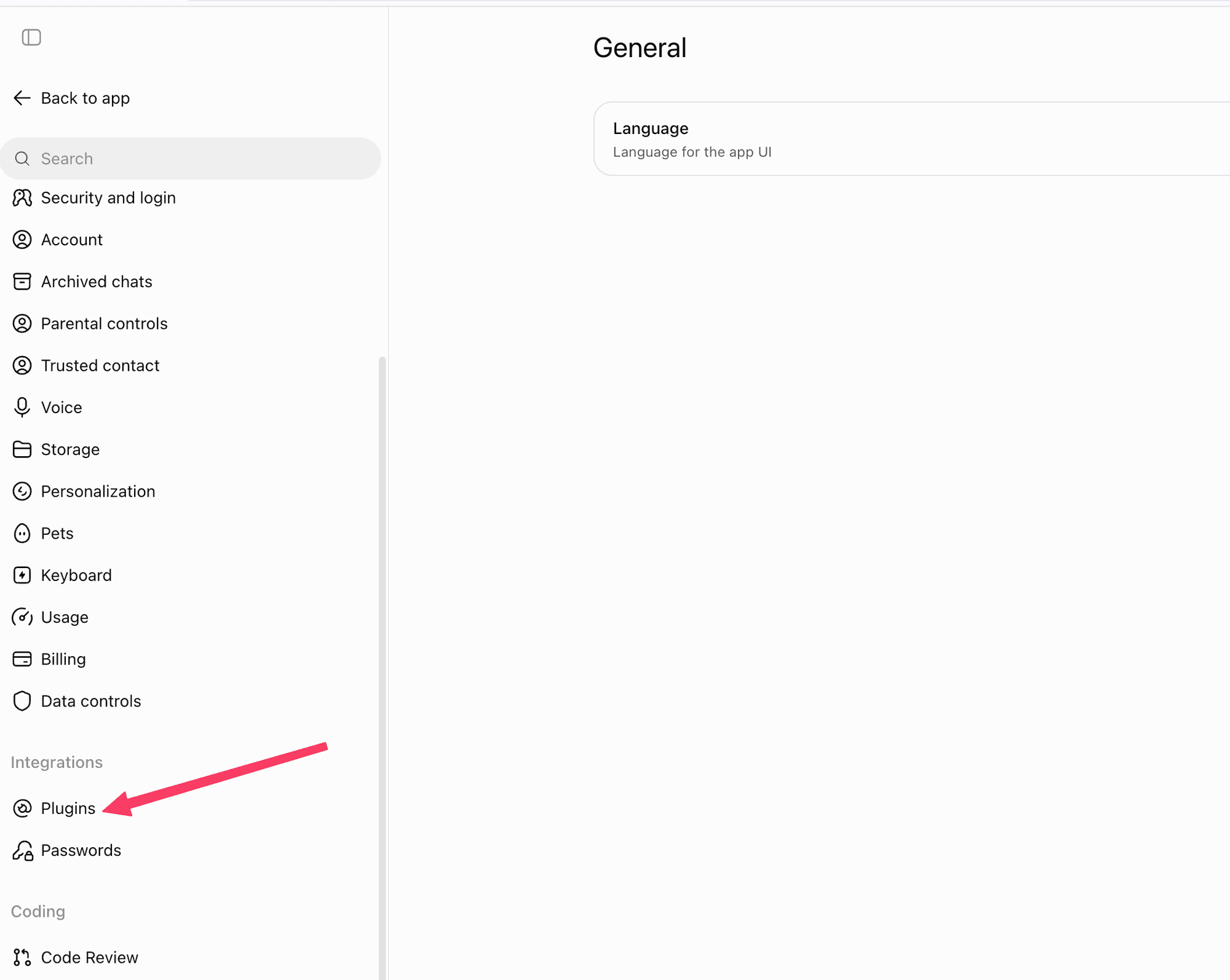
Choose Nexlev from your installed plugins, then click Uninstall.
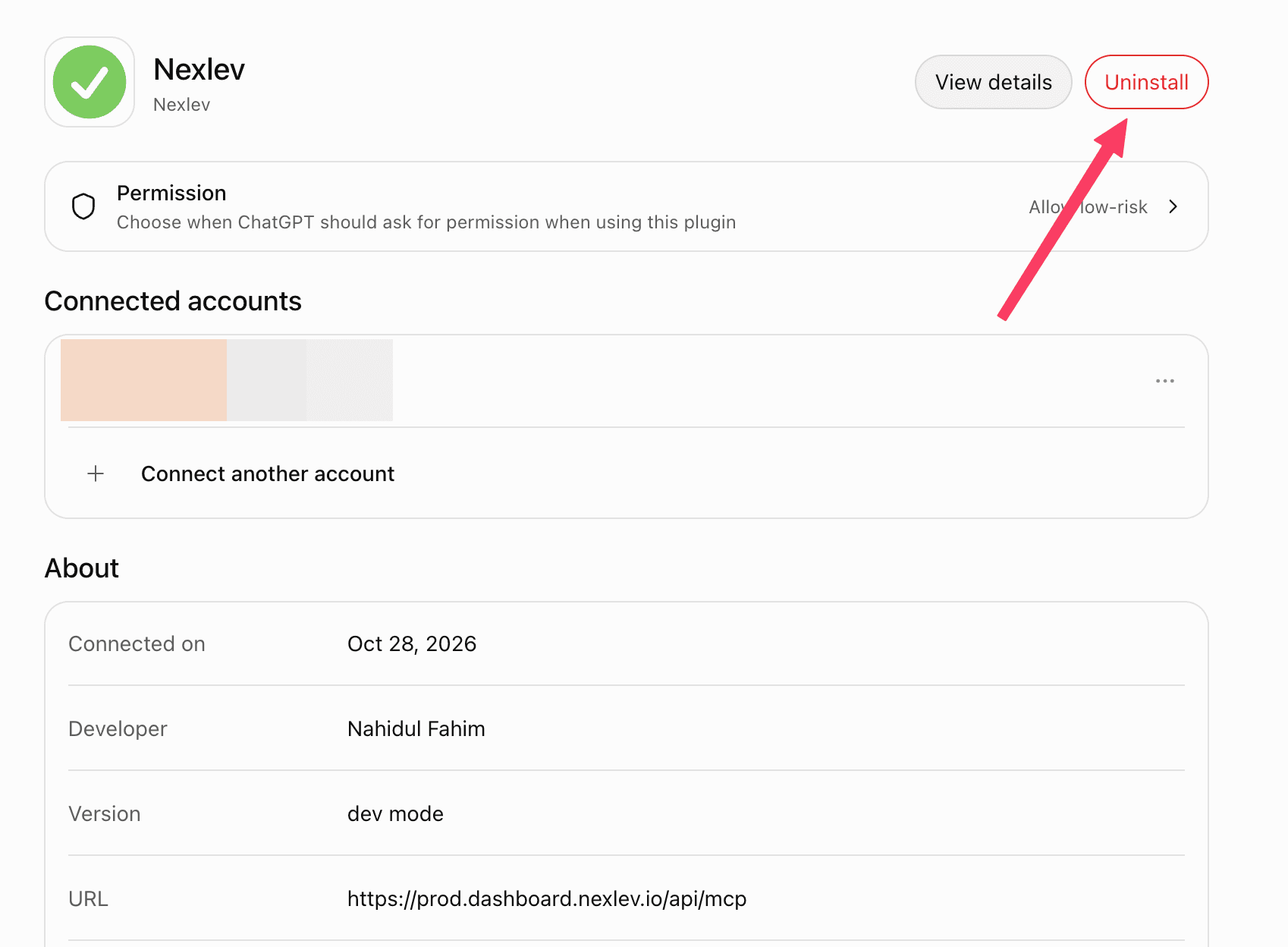
Step 2: Add NexLev and connect
Add NexLev again by following Steps 2–7 of the ChatGPT setup in the MCP Quickstart.
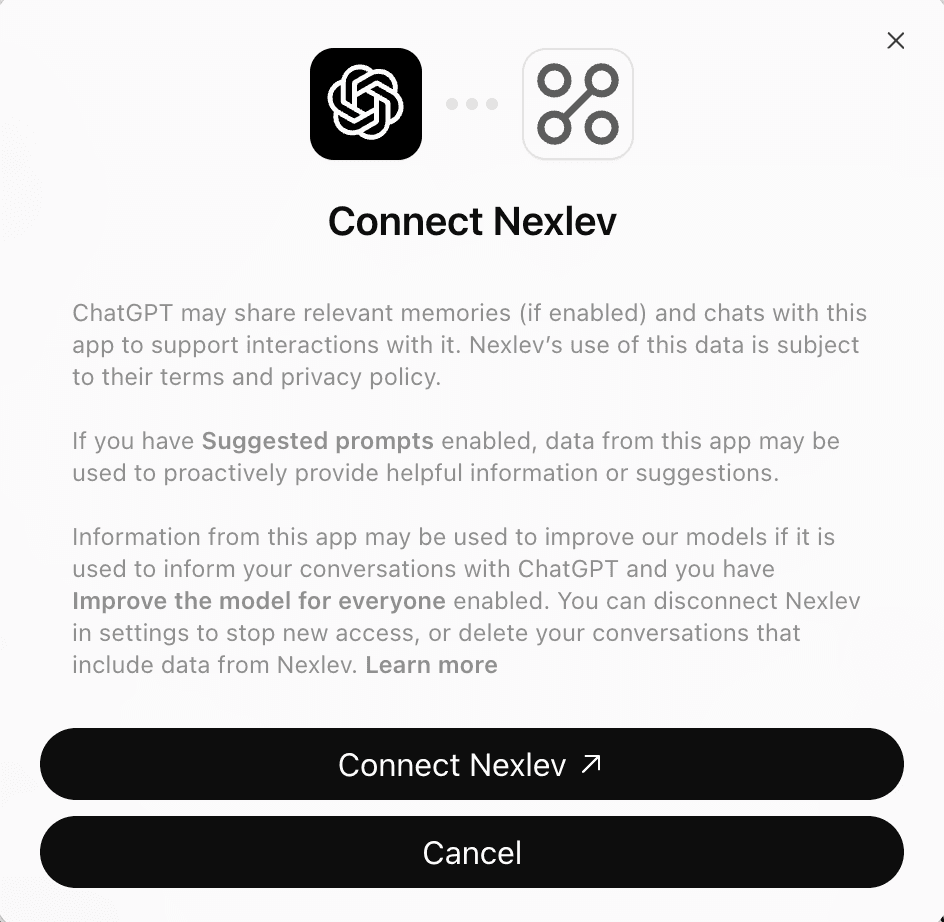
A Connect Nexlev window then opens. Click Connect Nexlev.
What happens next depends on how many Google accounts are signed in to your browser profile.
Scenario 1
Only one Google account is signed in to your browser profile
NexLev connects to that account automatically. You won't see an account picker.
To check whether that account has a NexLev subscription or is a free account, sign in to dashboard.nexlev.io with it and check whether it has an active subscription (see how to check your plan). If it's a free account, uninstall NexLev, add your purchase account to the browser profile, and connect again. You'll then get the account picker from Scenario 2.
Scenario 2
Several Google accounts are signed in to your browser profile
Google asks you to Choose an account. Pick the account you bought your NexLev subscription with.
Still stuck?
Email contact@nexlev.io with your sign-in email, the email on your Stripe receipt, and a screenshot of what's locked.