
What you see
You paid, but the dashboard shows Free or No Access.
Why it happens
You're signed in to the dashboard with a different Google account from the one you bought NexLev with. Each Google account is a separate NexLev account, so your plan only shows on the account that paid.
How to fix it
Step 1: Check which account you're signed in with
Click your profile picture in the top-right corner of the dashboard. The menu shows the account you're signed in with and its plan. Your plan also appears next to the NexLev logo in the top-left corner.
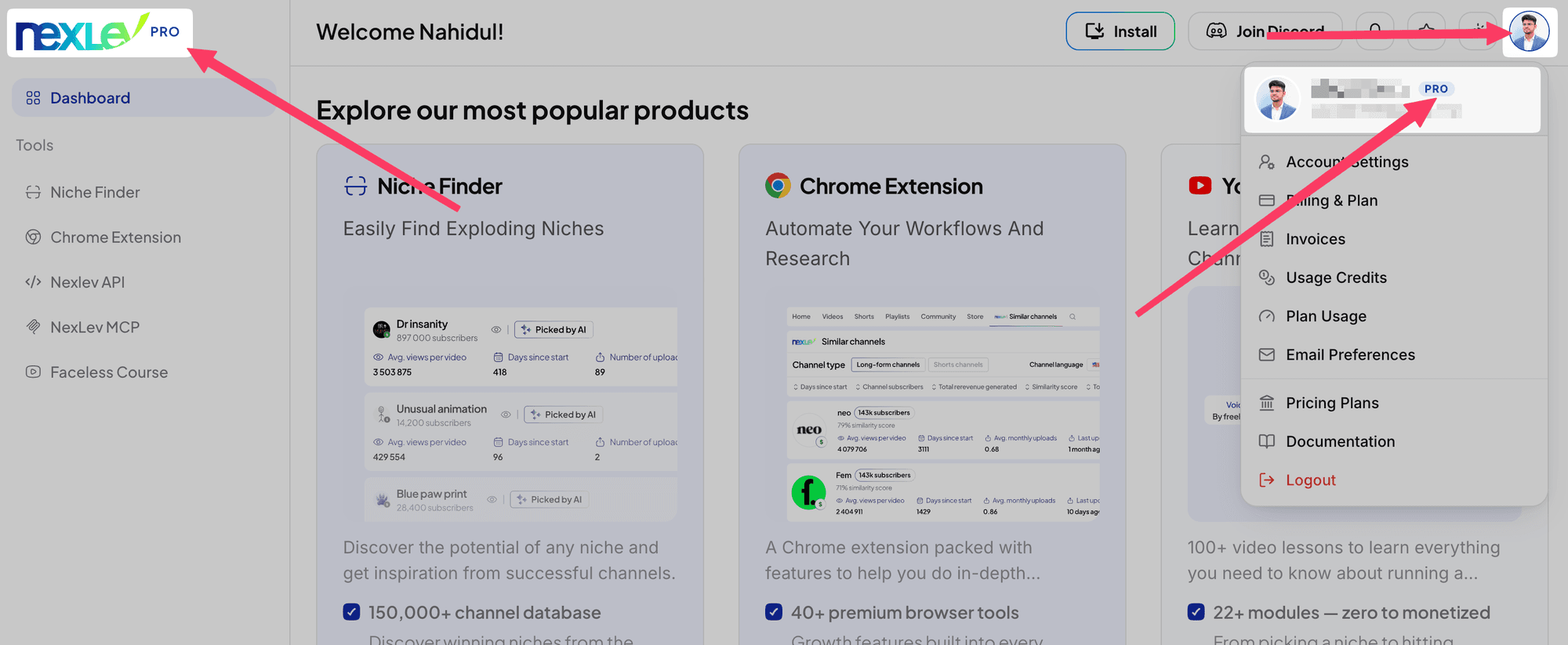
If it shows the plan you bought, for example LITE or PRO, you're on the right account. If it doesn't, you're signed in with a different account. Continue to Step 2.
Step 2: Sign out and sign in with the account that paid
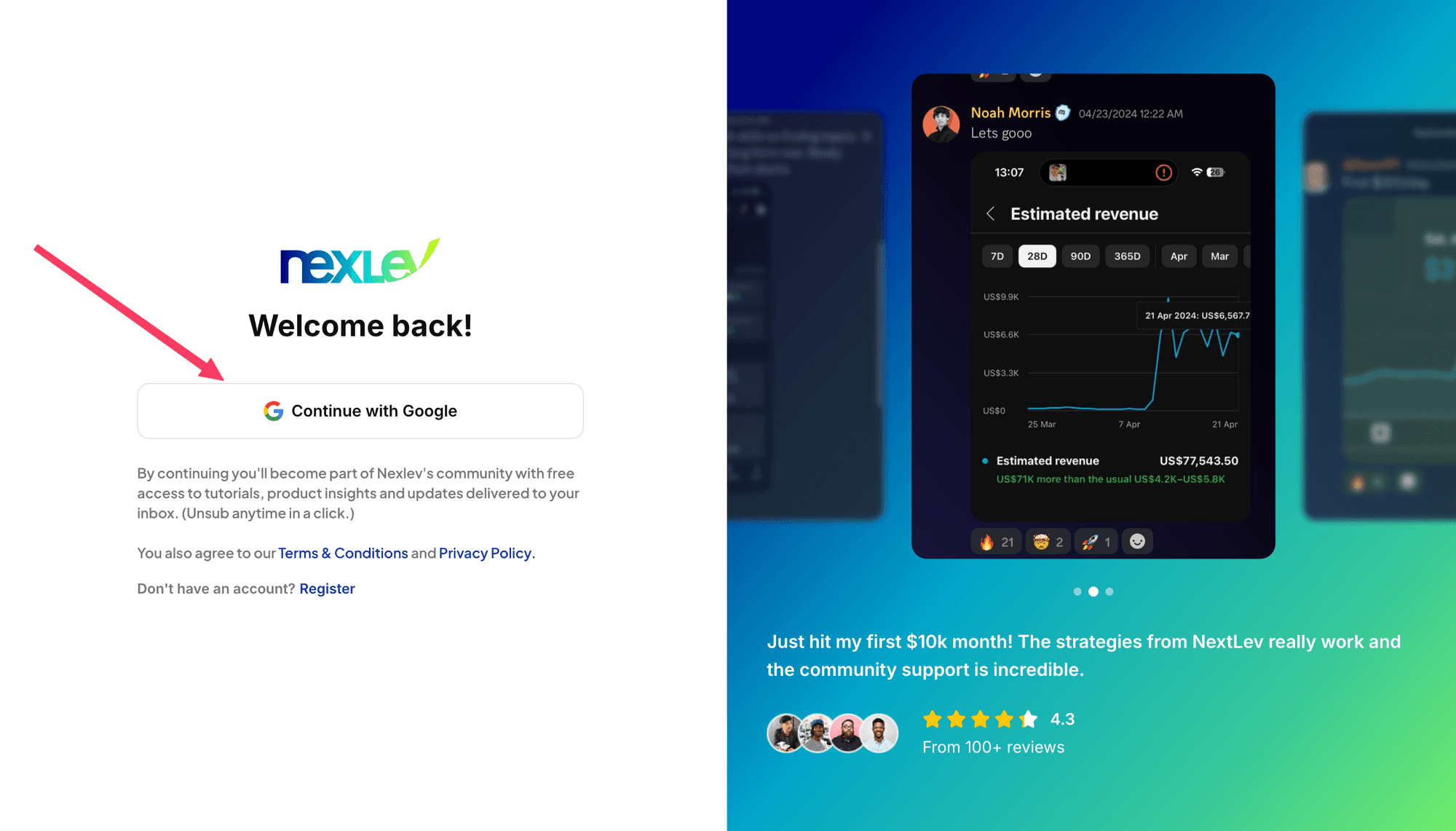
Click Logout in the profile menu. Then sign in at dashboard.nexlev.io and click Continue with Google. What happens next depends on how many Google accounts are signed in to your browser profile.
Scenario 1
Only one Google account is signed in to your browser profile
Clicking Continue with Google signs you in to the dashboard with that account straight away. You won't see an account picker.
If that account isn't the one you bought NexLev with, add your purchase account to the browser profile, then sign in again and you'll get the account picker from Scenario 2.
Scenario 2
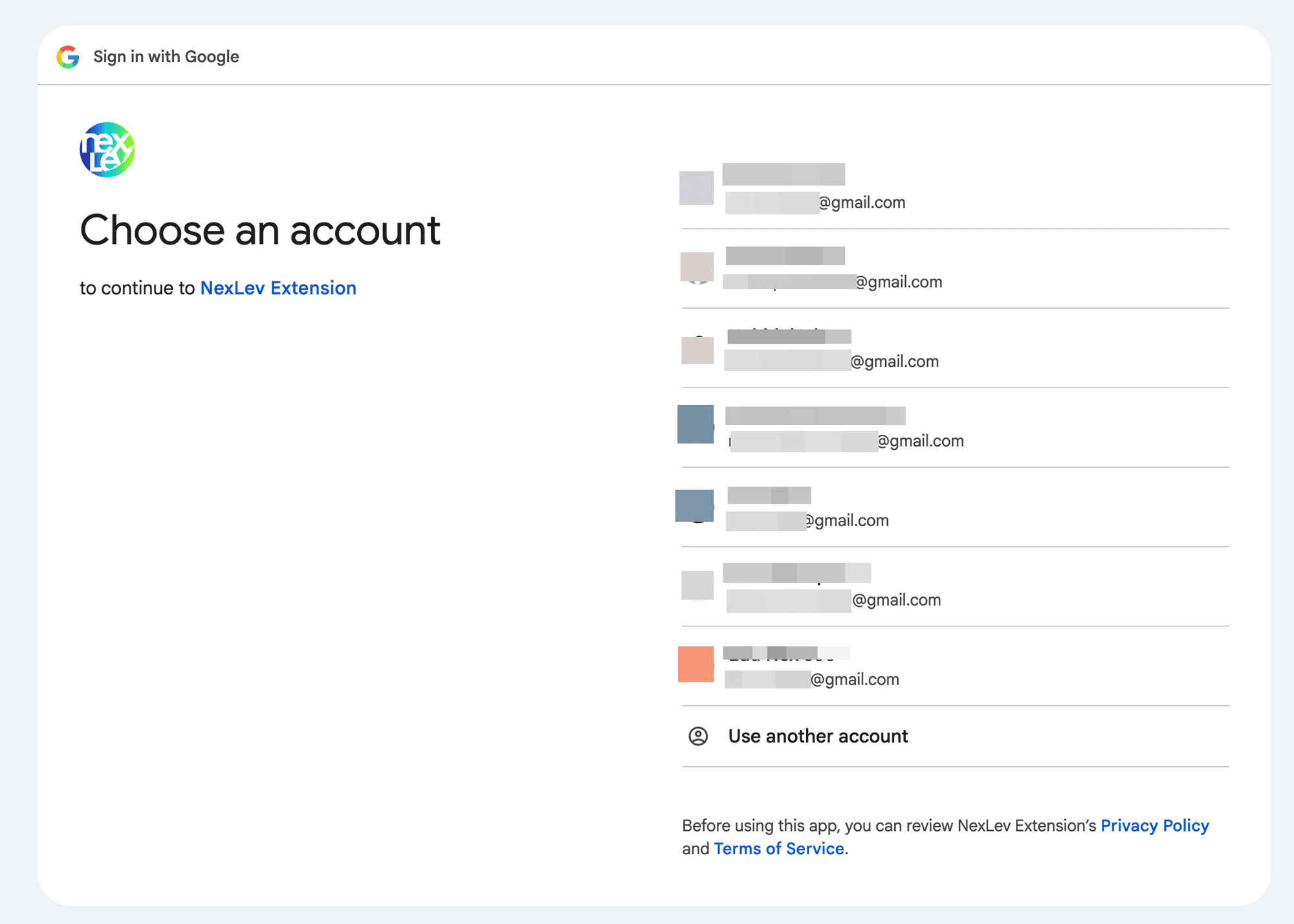
Several Google accounts are signed in to your browser profile
Google asks you to Choose an account. Pick the account you bought NexLev with.
Step 3: Check the plan again
Once you're signed in, check the plan next to the NexLev logo and in your profile menu, as in Step 1. It should now show the plan you bought.
Still stuck?
Email contact@nexlev.io with your sign-in email, the email on your Stripe receipt, and a screenshot of what's locked.