
What you see
An API key you use for n8n or the NexLev API returns "access denied", or acts as if you have no plan.
Why it happens
API keys belong to the NexLev account that created them. A key made while you were signed in to another account doesn't carry your paid plan.
Each account can have only one active API key at a time, so you need to revoke the current key before you can create a new one.
How to fix it
Step 1: Sign in to the dashboard with the account that paid
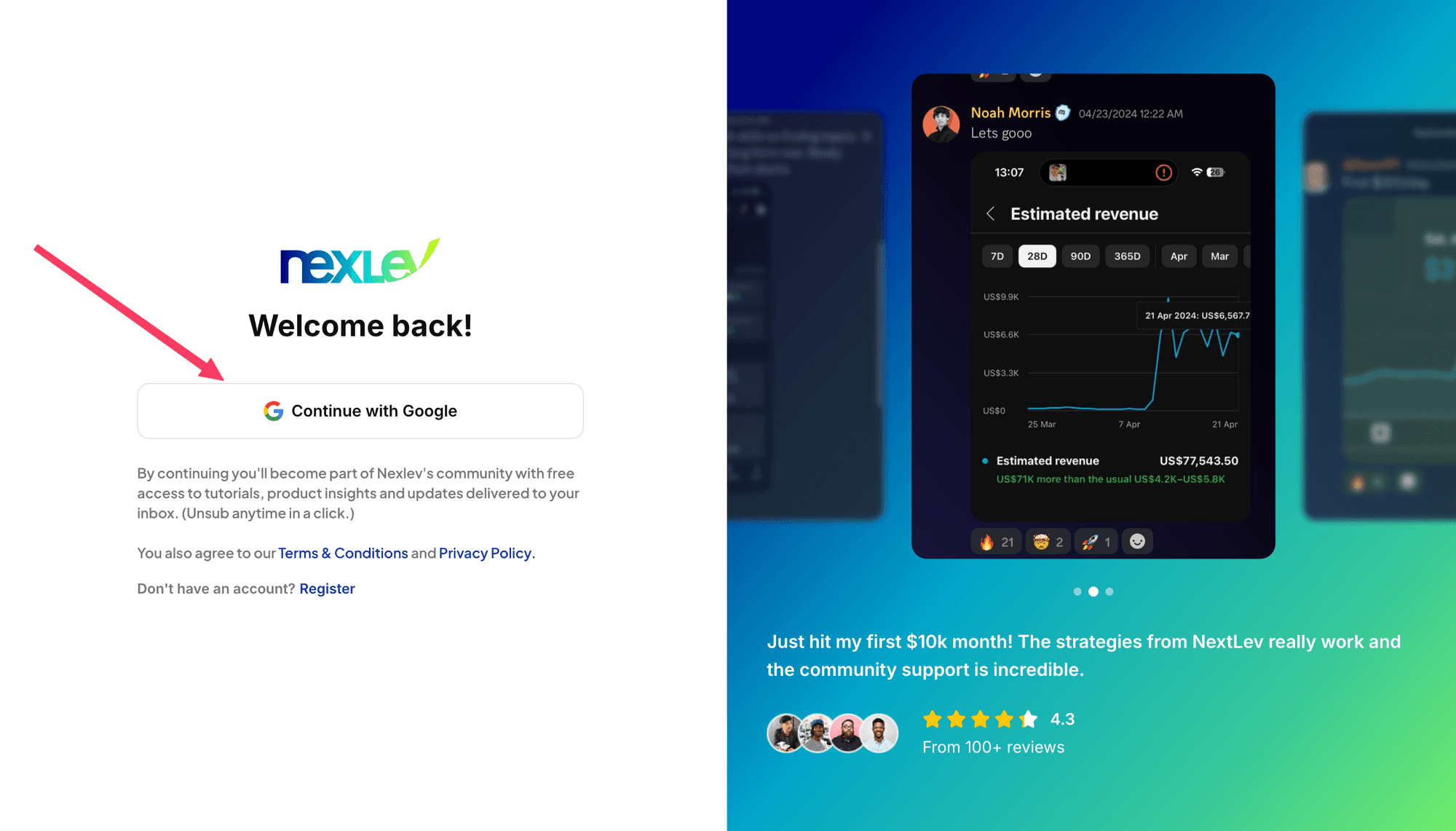
Go to dashboard.nexlev.io and click Continue with Google. What happens next depends on how many Google accounts are signed in to your browser profile.
Scenario 1
Only one Google account is signed in to your browser profile
Clicking Continue with Google signs you in to the dashboard with that account straight away. You won't see an account picker.
Make sure that account is the one you bought NexLev with. If it isn't, add your purchase account to the browser profile, then sign in again and you'll get the account picker from Scenario 2.
Scenario 2
Several Google accounts are signed in to your browser profile
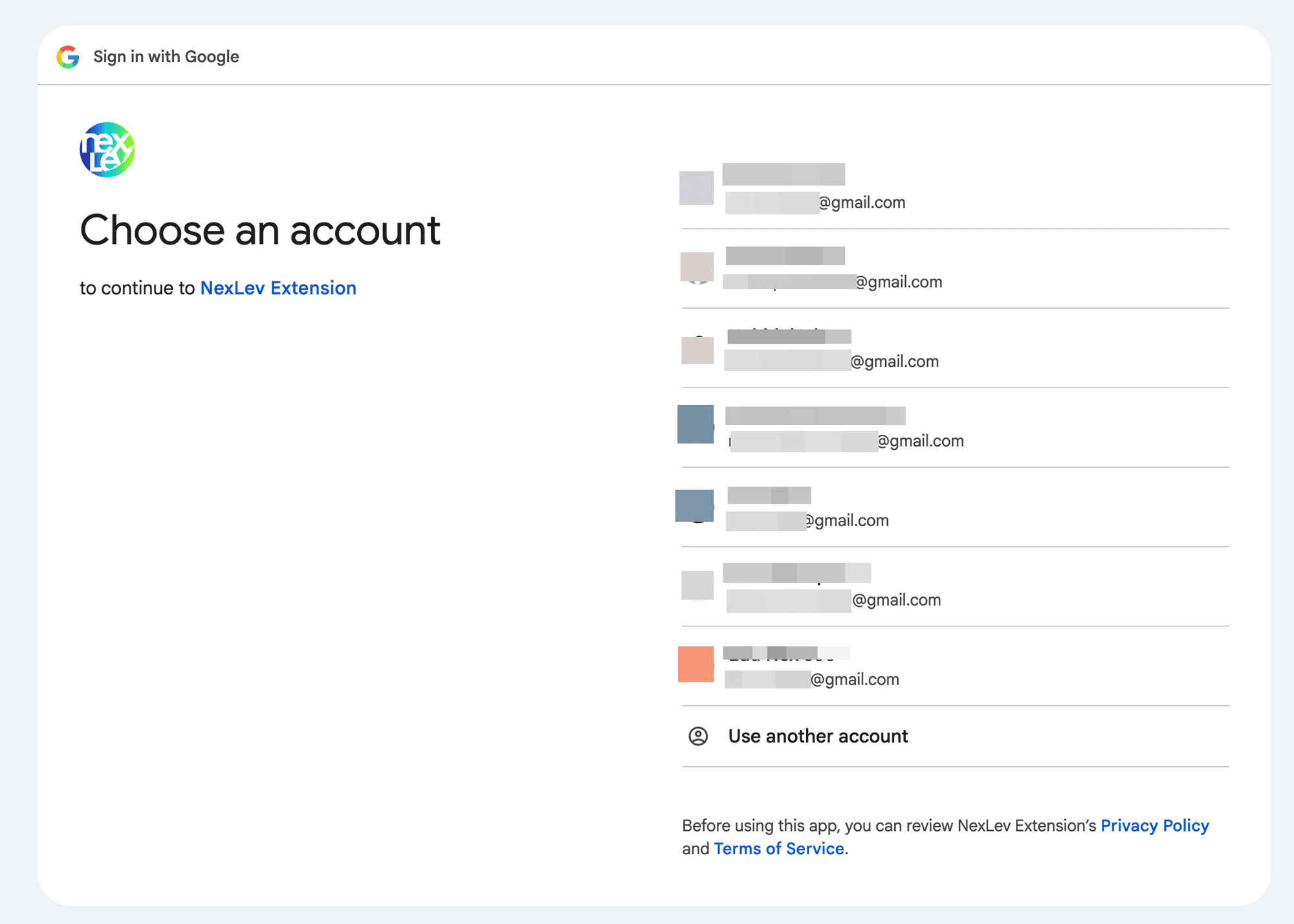
Google asks you to Choose an account. Pick the account you bought NexLev with.
Step 2: Check the dashboard shows the plan you bought
Once you're signed in, check the plan shown next to the NexLev logo in the top-left corner, and in your profile menu in the top-right corner.
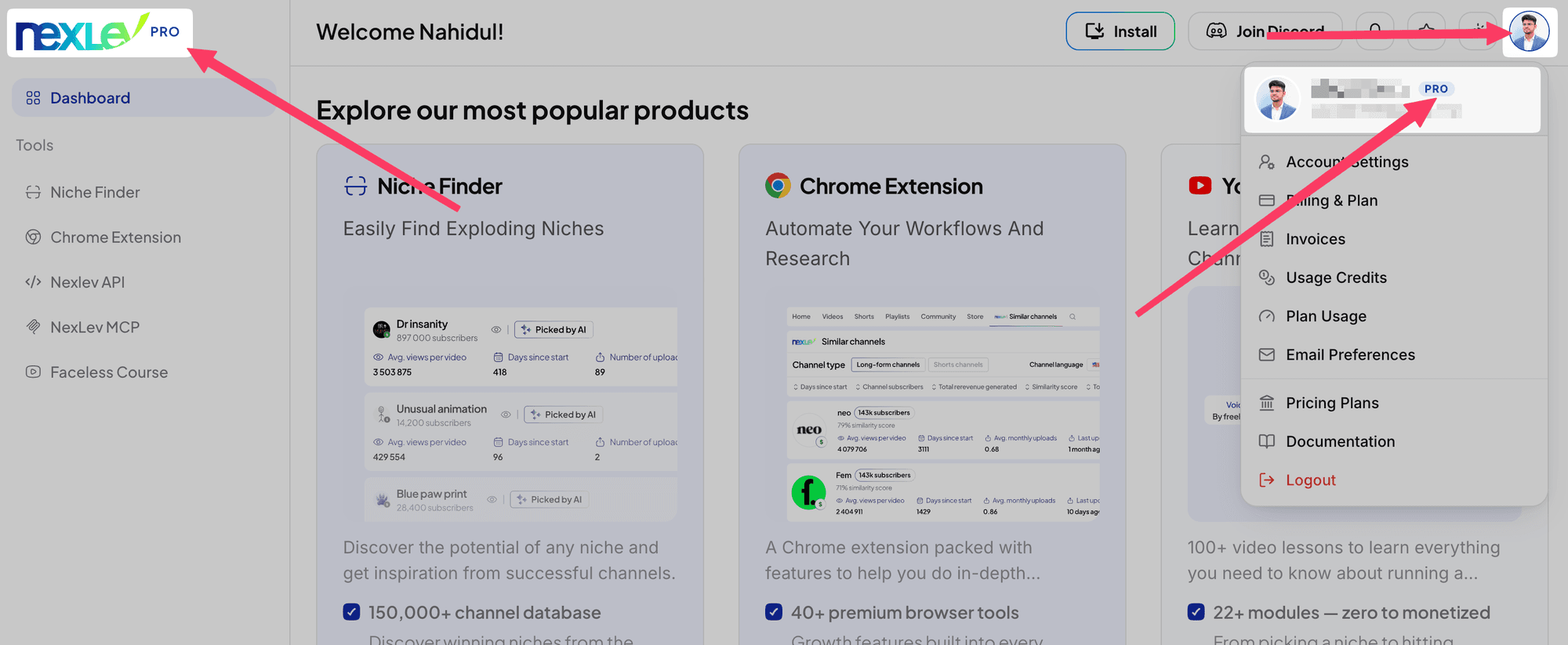
The NexLev API and n8n need NexLev Pro or the n8n Pro package.
If you don't see the plan you bought, you're signed in to a different account. Sign out and go back to Step 1.
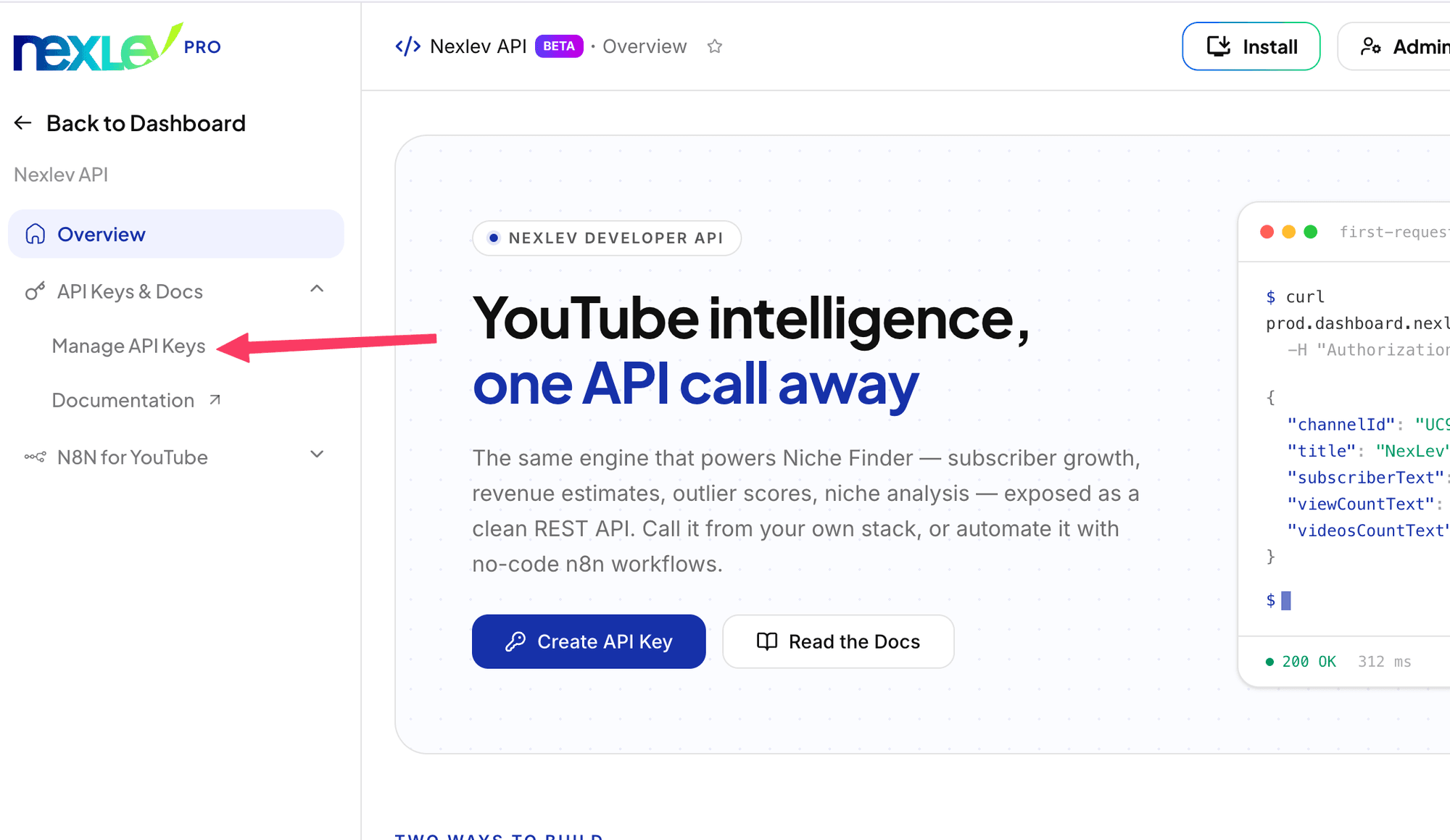
Step 3: Open Manage API Keys
In the dashboard sidebar, click Nexlev API.
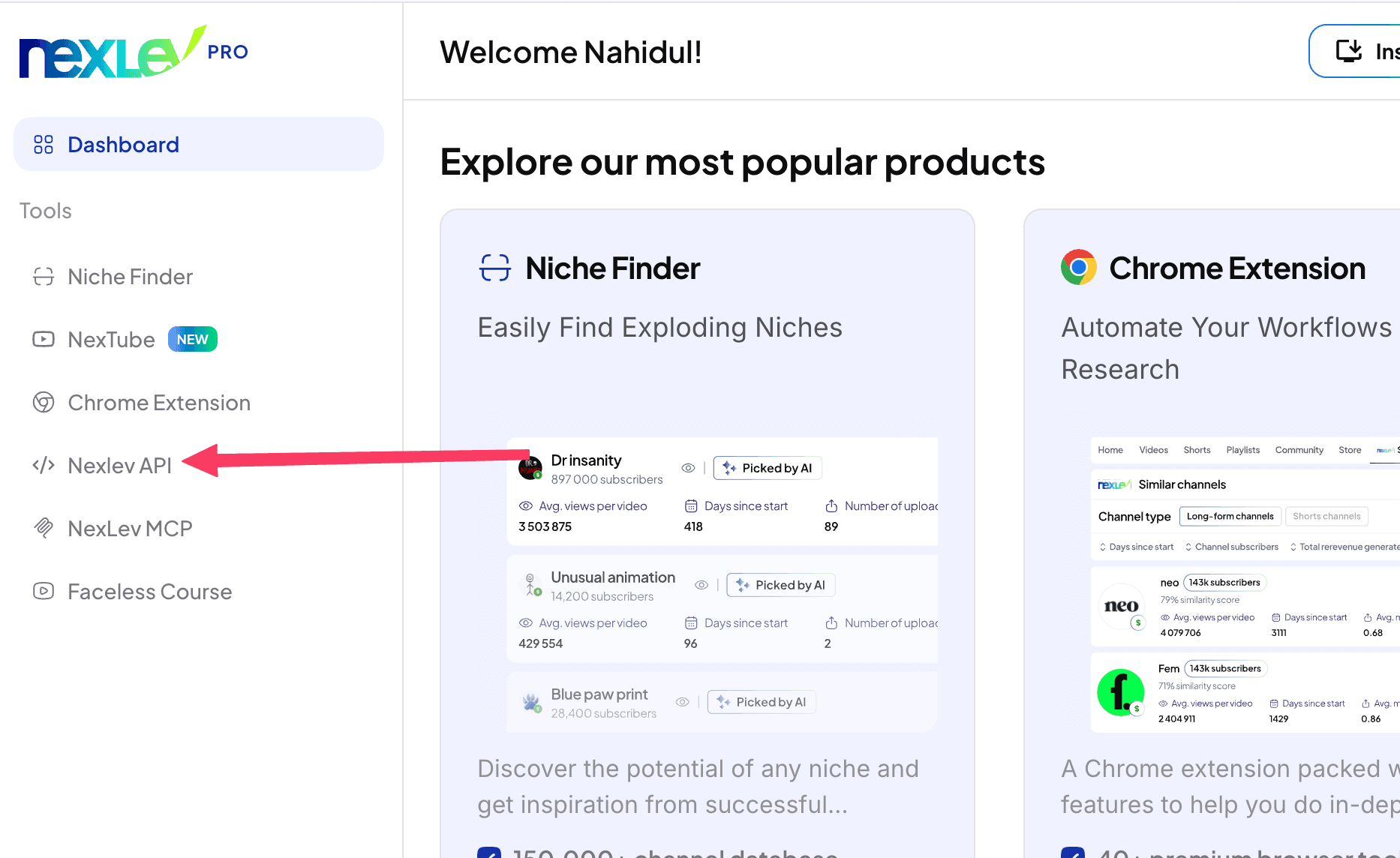
Then open API Keys & Docs → Manage API Keys.
Step 4: Revoke your active key
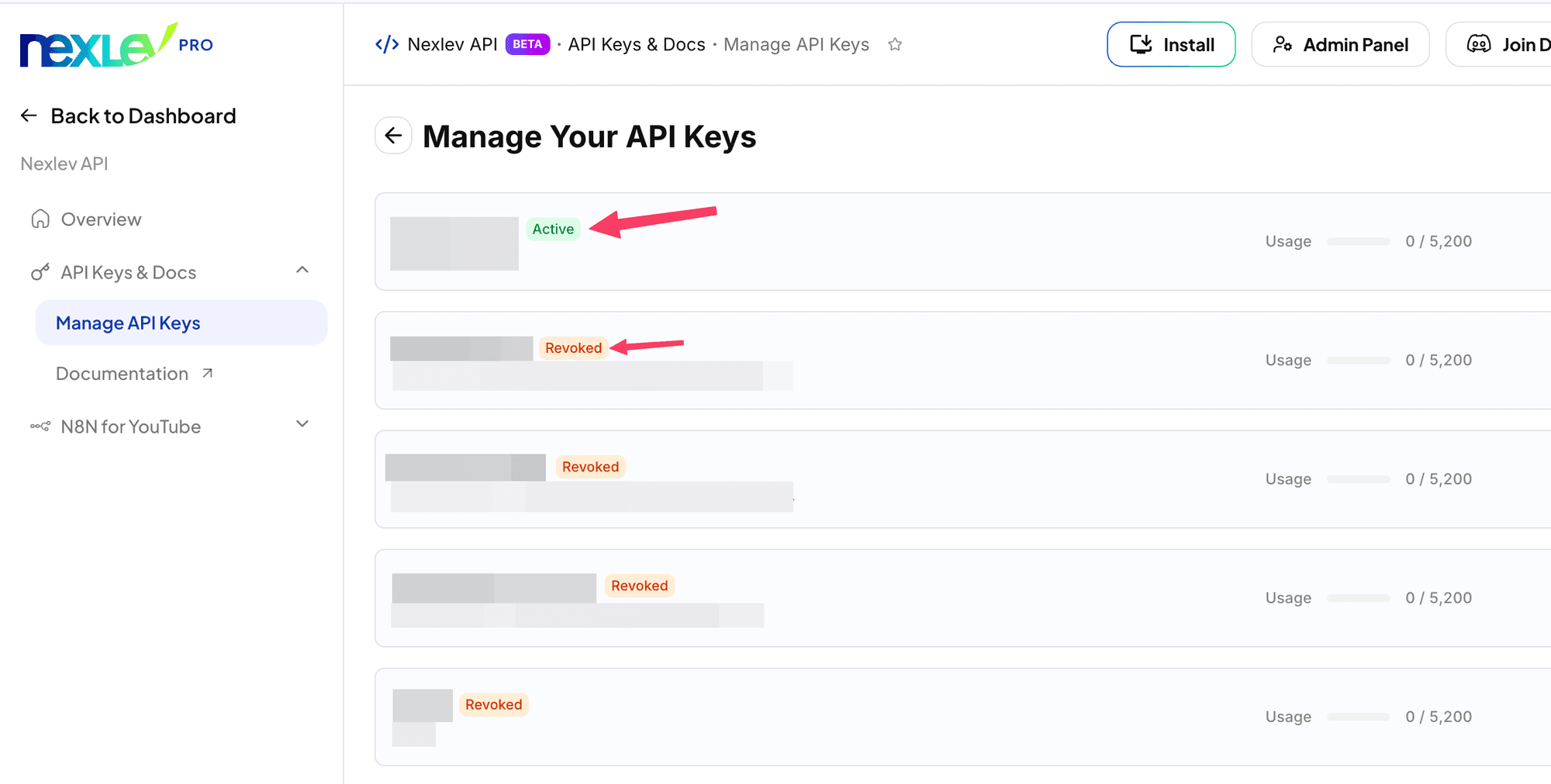
Your keys are listed with their status. Only one can be Active; older keys show as Revoked.
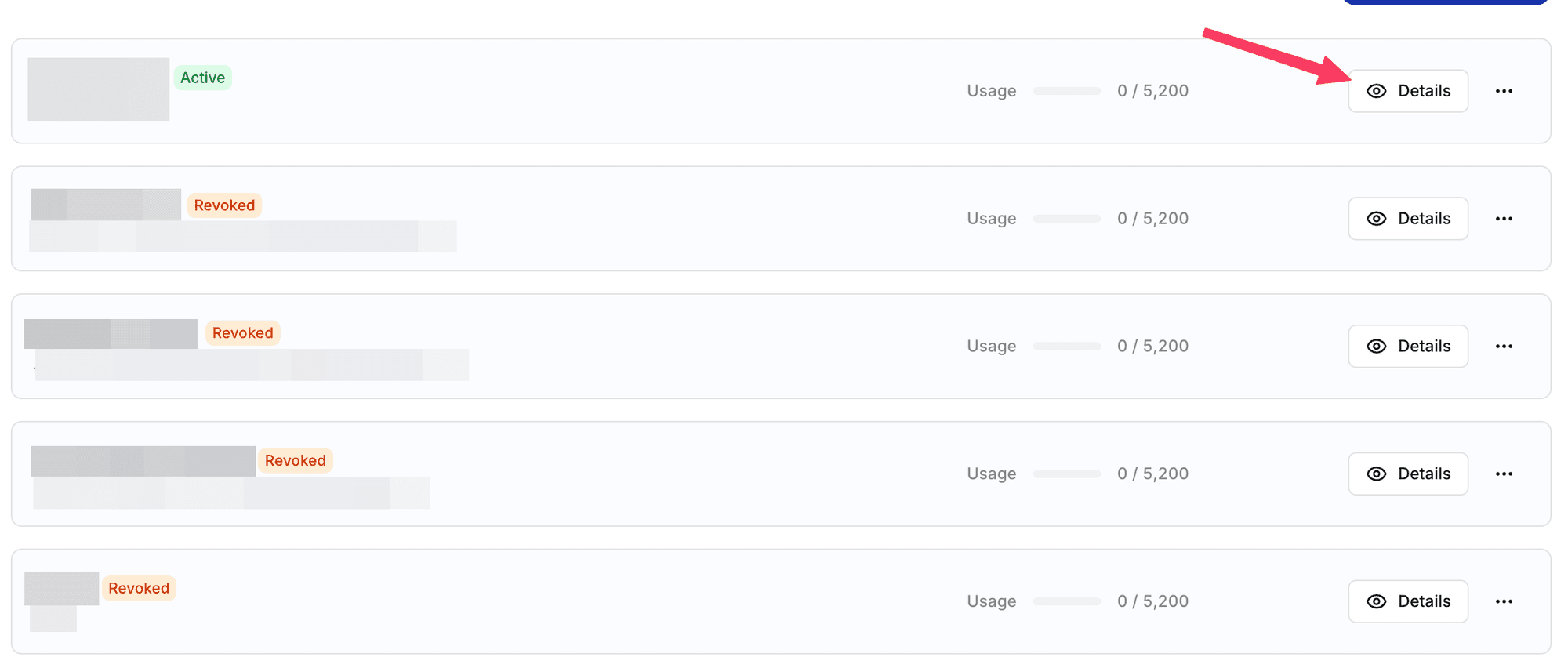
Click Details on the Active key.
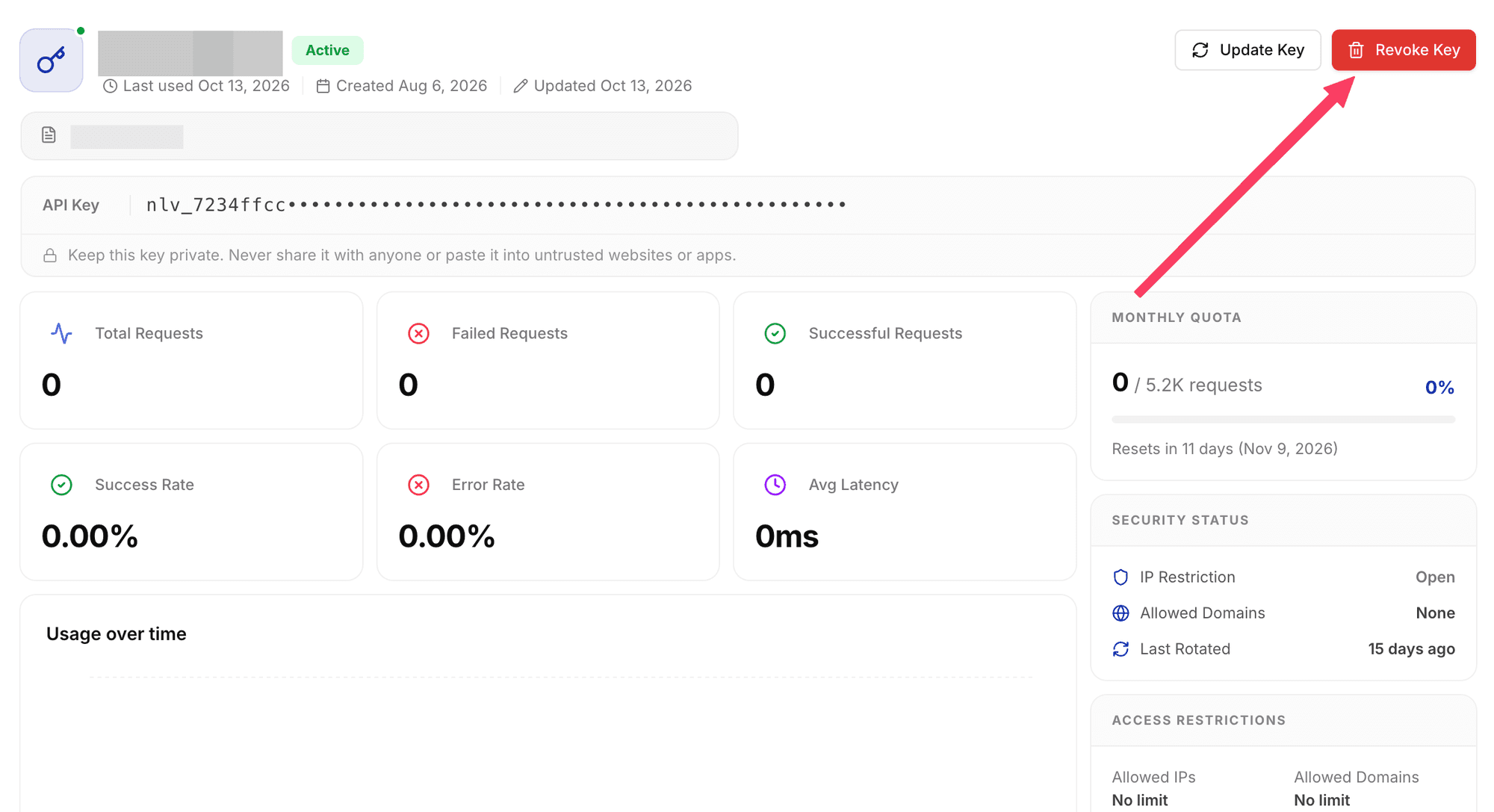
Click Revoke Key.
If you don't have an active key, skip to Step 5.
Step 5: Create a new API key
Go back to the Nexlev API overview page and click Create API Key.
Step 6: Replace the old key
Use the new key everywhere you used the old one:
- n8n: open your NexLev credential and paste the new key into the API Key field. See Configure Authentication in the n8n Quickstart.
- NexLev API: send the new key in the
Authorizationheader. See Authentication.
Still stuck?
Email contact@nexlev.io with your sign-in email, the email on your Stripe receipt, and a screenshot of what's locked.