
Theses APIs allows you to retrieve comprehensive information about YouTube videos and shorts, including comments, detailed video information, shorts details, transcripts, subtitles, and revenue data. Access video metadata, engagement metrics, caption data, and monetization insights in your n8n workflows.
Overview
Use this API to fetch detailed information about YouTube videos and shorts. This resource provides nine main operations: Get video details (long-form video metadata), Get Shorts Details (short-form video metadata), Download Thumbnail (high-quality thumbnail extraction), Get Comments (video engagement), Get Transcript (video captions/subtitles), Get Bulk Transcript (batch transcript retrieval), Get Subtitle (subtitle metadata and URLs), Get Bulk Subtitle (batch subtitle metadata retrieval), and Get RPM (revenue per mille data for monetization analysis).
Quick Start
Get started in 3 simple steps:
- Install NexLev: Add the NexLev node to your n8n instance (Installation Guide)
- Get API Key: Create your API key at API Key
- Make Your First Request:
- Add NexLev node → Select "Videos and Short" → Choose "Get video details"
- Enter a Video ID (e.g.,
dQw4w9WgXcQ) - Execute to get video information
Example Result: You'll receive video metadata including title, description, view count, likes, and channel information.
Endpoint Details
- Resource: Videos and Short
- Operations: Get video details | Get Shorts Details | Download Thumbnail | Get Comments | Get Transcript | Get Bulk Transcript | Get Subtitle | Get Bulk Subtitle | Get RPM | Custom API Call
- Authentication: Required (API Key)
- Quota Cost: 🥞 1 quota per request · 🥞 5 quota per request (Get Bulk Transcript, Get Bulk Subtitle)
API Reference
| Operation | Method & Path | Quota Cost |
|---|---|---|
| Get Video Details | GET /api/external/videos/details | 🥞 1 |
| Get Shorts Details | GET /api/external/shorts/details | 🥞 1 |
| Get Comments | GET /api/external/videos/comments | 🥞 1 |
| Get Transcript | GET /api/external/videos/transcript | 🥞 1 |
| Get Bulk Transcript | POST /api/external/videos/bulk-transcript | 🥞 5 |
| Get Subtitle | GET /api/external/videos/subtitle | 🥞 1 |
| Get Bulk Subtitle | POST /api/external/videos/bulk-subtitle | 🥞 5 |
| Get RPM | GET /api/external/videos/rpm | 🥞 1 |
Operations Quick Reference
| Operation | Purpose | Pagination | Bulk Support | Best For | Quota Cost |
|---|---|---|---|---|---|
| Get video details | Retrieve comprehensive video metadata | ❌ No | ❌ No | Single video analysis | 🥞 1 |
| Get Shorts Details | Retrieve shorts-specific metadata | ❌ No | ❌ No | Shorts performance tracking | 🥞 1 |
| Download Thumbnail | Extract high-quality video thumbnails | ❌ No | ❌ No | Content curation, design research | 🥞 1 |
| Get Comments | Retrieve video comments and engagement | ✅ Yes | ❌ No | Sentiment analysis, engagement | 🥞 1 |
| Get Transcript | Extract video captions with timestamps | ❌ No | ❌ No | Content analysis, accessibility | 🥞 1 |
| Get Bulk Transcript | Batch transcript extraction (up to 10 videos) | ❌ No | ✅ Yes | Large-scale content processing | 🥞 5 |
| Get Subtitle | Retrieve subtitle metadata and URLs | ❌ No | ❌ No | Multi-language content | 🥞 1 |
| Get Bulk Subtitle | Batch subtitle metadata (up to 10 videos) | ❌ No | ✅ Yes | Language coverage analysis | 🥞 5 |
| Get RPM | Retrieve revenue per mille estimates | ❌ No | ❌ No | Monetization research | 🥞 1 |
Configuration
Parameters
| Parameter | Type | Required | Description |
|---|---|---|---|
| Video ID | string | Yes | The unique YouTube video identifier (e.g., dQw4w9WgXcQ) |
Setup Steps
Step 1: Add NexLev Node
- Add the NexLev node to your workflow
- See Quickstart Guide for installation instructions
Step 2: Configure Resource
- Under Resource, select Videos and Short
Step 3: Select Operation
Choose one of the following operations:
| Operation | Description | Input Type |
|---|---|---|
| Get video details | Get detailed information for a YouTube video | Single Video ID |
| Get Shorts Details | Get detailed information for a YouTube shorts video | Single Video ID |
| Download Thumbnail | Extract high-quality thumbnails from videos or shorts | Single Video ID |
| Get Comments | Get comments for a YouTube video | Single Video ID |
| Get Transcript | Get transcript for a YouTube video | Single Video ID |
| Get Bulk Transcript | Get transcripts for multiple YouTube videos at once | Multiple Video IDs |
| Get Subtitle | Get subtitle metadata and download URLs | Single Video ID |
| Get Bulk Subtitle | Get subtitle metadata for multiple videos at once | Multiple Video IDs |
| Get RPM | Get revenue per mille (RPM) data for a YouTube video | Single Video ID |
| Custom API Call | Make custom API calls | Varies |
Step 4: Authentication
- Under Credential to connect with, select your NexLev account
- If not configured, create one using your API Key
Step 5: Enter Video ID(s) ✅ Required
- For single operations: Enter one YouTube video ID (e.g.,
dQw4w9WgXcQ) - For bulk operations: Enter comma-separated video IDs (e.g.,
dQw4w9WgXcQ, Z4hVGCWH1Kc) - Video IDs are typically 11 characters long
Step 6: Configure Optional Parameters
For Get Comments:
- Continuation Token (optional) - Token from previous response for pagination
- Leave empty for the first request
For Bulk Operations (Get Bulk Transcript, Get Bulk Subtitle):
- Maximum: 10 video IDs per request
- ⚠️ Separate video IDs with commas
- ✅ Recommended: Process in batches for large lists
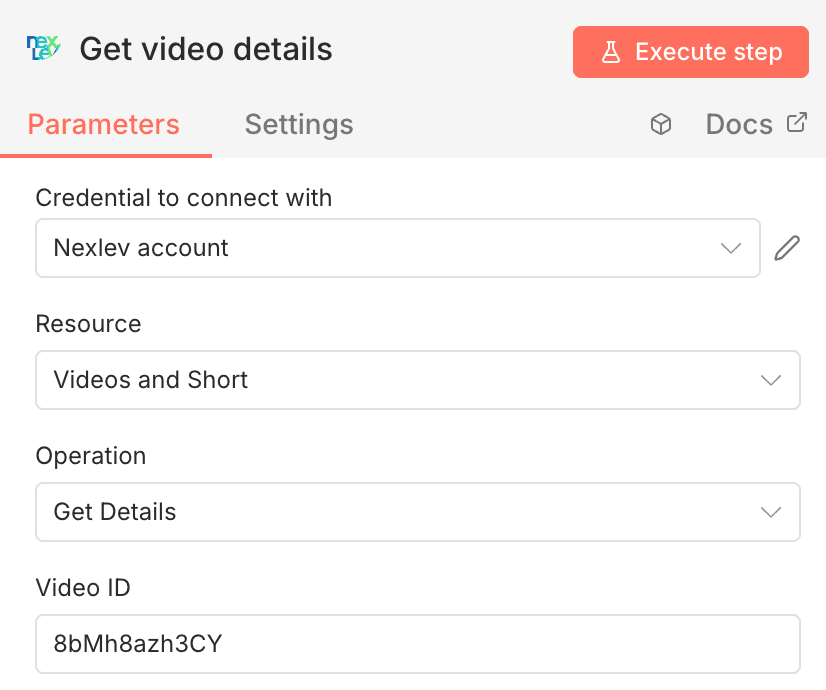
Execution
Click Execute step to retrieve the video data.
Available Operations
The Videos and Short resource provides nine different operations to retrieve various types of video data:
Get video details
Get detailed information for a YouTube video including title, description, view count, likes, channel information, and more.
When to use this operation:
- Analyzing individual video performance metrics
- Gathering metadata for video databases
- Tracking video statistics over time
- Verifying video availability and status
Get Shorts Details
Get detailed information for a YouTube Shorts video including engagement metrics and short-form specific metadata.
When to use this operation:
- Tracking shorts-specific performance metrics
- Analyzing short-form content engagement
- Comparing shorts vs long-form video performance
- Extracting shorts metadata for databases
Download Thumbnail
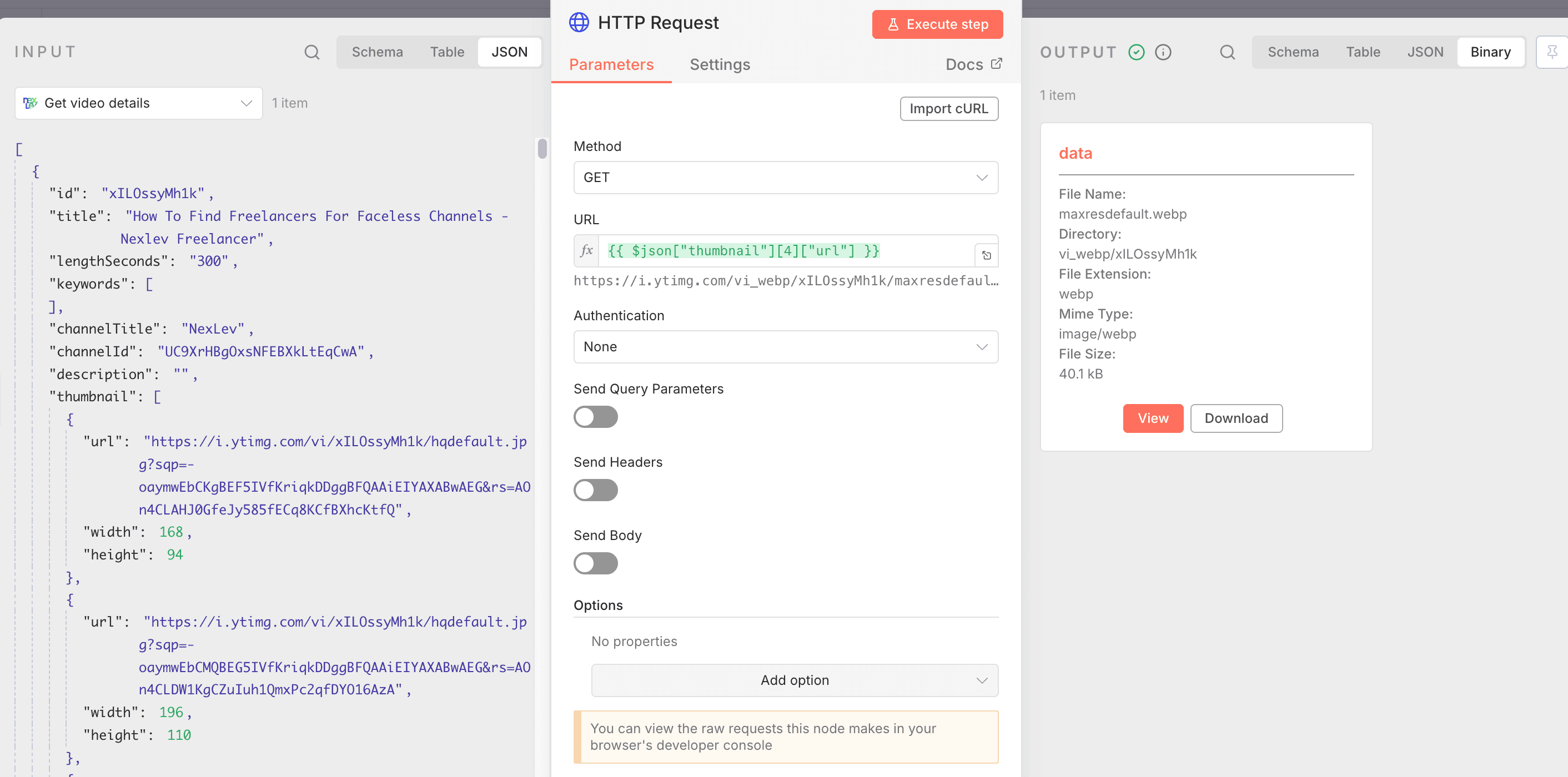
Download video or shorts thumbnails in high quality. This operation uses the HTTP Request node to fetch the thumbnail image from the URL provided in the video details or shorts details response.
When to use this operation:
- Downloading thumbnails for content analysis
- Building thumbnail archives for research
- Analyzing thumbnail design patterns
- Creating visual reports with video thumbnails
Prerequisites
Before downloading thumbnails, you must first:
- Retrieve video data using either:
- Get video details operation (for regular videos)
- Get Shorts Details operation (for shorts)
- Extract the thumbnail URL from the response
- Use an HTTP Request node to download the thumbnail
Configuration Steps
Step 1: Get Video/Shorts Data
First, add the NexLev node and retrieve the video or shorts details:
- Add the NexLev node to your workflow
- Under Resource, select Videos and Short
- Under Operation, select:
- Get video details for regular videos
- Get Shorts Details for shorts
- Enter the Video ID
- Execute to retrieve the data
Step 2: Download Thumbnail
Add an HTTP Request node after the NexLev node:
-
Add the HTTP Request node
-
Configure the following parameters:
- Method:
GET - Authentication:
None - Send Query Parameters: Toggle OFF
- Send Headers: Toggle OFF
- Send Body: Toggle OFF
- Method:
-
In the URL field, use the following expression to reference the thumbnail URL:
For regular videos (Get video details):
{
  {
    $json["thumbnail"][4]["url"];
  }
}
For shorts (Get Shorts Details):
{
  {
    $json["thumbnail"][14]["url"];
  }
}
Step 3: Save or Process the Thumbnail
The HTTP Request node will return binary data. You can:
- View the thumbnail in the n8n interface by clicking the Binary tab
- Save to disk using a Write Binary File node
- Upload to cloud storage (Google Drive, Dropbox, etc.)
- Send via email or webhook
Response
Status Code: 200 OK
Response Type: Binary data (image/webp, image/jpeg, or image/png)
The response contains the raw image data with the following metadata:
{
  "data": {
    "fileName": "maxresdefault.webp",
    "directory": "vi_webp/xILOssyMh1k",
    "fileExtension": "webp",
    "mimeType": "image/webp",
    "fileSize": "40.1 kB"
  }
}
Response Fields:
fileName- Name of the thumbnail filedirectory- Directory path on YouTube's CDNfileExtension- File extension (webp, jpg, png)mimeType- MIME type of the imagefileSize- Size of the thumbnail file (human-readable)
Thumbnail Sizes and Quality
YouTube thumbnails are available in various sizes. Common thumbnail URLs include:
| Thumbnail Type | Typical Size | URL Pattern | Array Index |
|---|---|---|---|
| Default | 120x90 | https://i.ytimg.com/vi/VIDEO_ID/default.jpg | 0-1 |
| Medium Quality | 320x180 | https://i.ytimg.com/vi/VIDEO_ID/mqdefault.jpg | 2-3 |
| High Quality | 480x360 | https://i.ytimg.com/vi/VIDEO_ID/hqdefault.jpg | 4-5 |
| Standard | 640x480 | https://i.ytimg.com/vi/VIDEO_ID/sddefault.jpg | 6-7 |
| Max Resolution | 1280x720+ | https://i.ytimg.com/vi/VIDEO_ID/maxresdefault.webp | 14+ |
Example Workflow
Here's a complete workflow to download video thumbnails:
- Manual Trigger node - Add video ID as input
- NexLev node:
- Resource: Videos and Short
- Operation: Get video details or Get Shorts Details
- Video ID:
{{ $json.videoId }}
- HTTP Request node:
- Method:
GET - URL:
{{ $json["thumbnail"][14]["url"] }}(adjust index as needed)
- Method:
- Write Binary File node (optional):
- File Name:
{{ $json.videoId }}_thumbnail.webp - Destination: Your desired save location
- File Name:
Use Cases
- Content Creation: Download thumbnails for video analysis or content curation
- Archive Building: Save thumbnails alongside video metadata for documentation
- Design Inspiration: Collect high-performing video thumbnails for design reference
- Automated Reporting: Include video thumbnails in automated reports or dashboards
- Social Media: Reuse thumbnails for cross-platform content promotion
- Quality Control: Download thumbnails to verify video branding and consistency
Get Comments
Get comments for a YouTube video including comment text, author information, likes, and reply counts. Supports pagination via continuation tokens to retrieve additional comments beyond the initial response.
When to use this operation:
- Analyzing audience sentiment and feedback
- Tracking engagement patterns in comments
- Building comment databases for research
- Identifying influential commenters and discussions
Get Transcript
Get the complete transcript/captions for a YouTube video with timestamps, useful for content analysis, summarization, or accessibility purposes.
When to use this operation:
- Extracting video content for text analysis
- Creating searchable video archives
- Generating video summaries or highlights
- Making content accessible with captions
Get Bulk Transcript
Get transcripts for multiple YouTube videos in a single request, perfect for batch processing and analyzing large numbers of videos efficiently.
When to use this operation:
- Batch processing transcripts for multiple videos
- Building large transcript datasets efficiently
- Analyzing content across video collections
- Reducing API calls for transcript extraction
Configuration
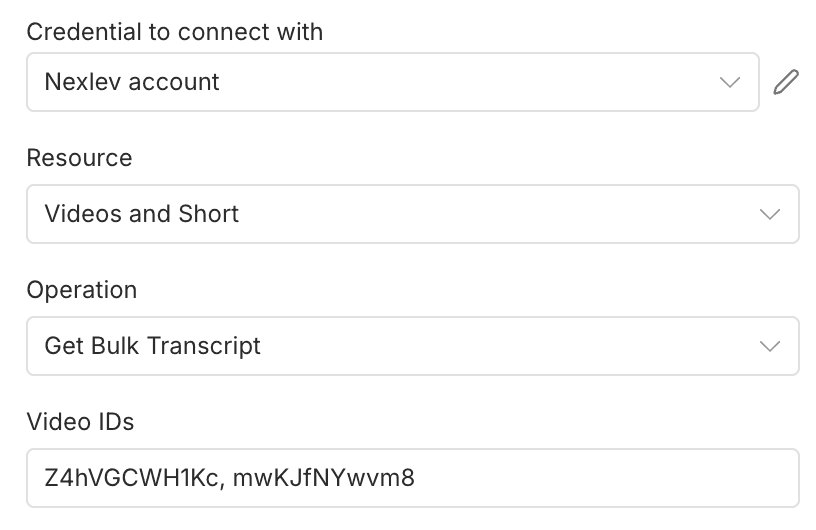
- Add the NexLev node to your workflow
- Under Resource, select Videos and Short
- Under Operation, select Get Bulk Transcript
- Under Credential to connect with, select your NexLev account
- In the Video IDs field, enter the YouTube video IDs separated by commas (e.g.,
8bMh8azh3CY, mwKJfNYwvm8)
Use Cases
- Batch Content Analysis: Extract transcripts from multiple videos simultaneously for content analysis
- Video Comparison: Compare transcripts across multiple videos to identify patterns or similarities
- Research & Data Mining: Gather large datasets of video transcripts for research purposes
- SEO Optimization: Analyze transcript content across multiple videos to identify keyword opportunities
- Content Curation: Extract transcripts from entire video playlists or channels efficiently
- Translation Workflows: Batch process transcripts for translation services
- Accessibility Compliance: Extract transcripts from multiple videos for accessibility documentation
- Training Data: Collect transcript data for machine learning or AI model training
Best Practices
- Batch Size: Request transcripts for up to 10 videos at a time (maximum limit)
- Error Handling: Always check the
successfield for each video in the results array - Retry Logic: Implement retry logic for failed videos with exponential backoff
- Data Validation: Verify that transcripts are available before making bulk requests
- Storage: Consider storing retrieved transcripts to avoid repeated API calls
- Processing: Process results asynchronously for large batches to avoid workflow timeouts
- Large Lists: For lists exceeding 10 videos, split them into multiple batch requests
Example Workflow
Here's a complete workflow to process bulk transcripts:
- Manual Trigger node - Add list of video IDs
- Code node - Format video IDs as comma-separated string
- NexLev node:
- Resource: Videos and Short
- Operation: Get Bulk Transcript
- Video IDs:
{{ $json.videoIds }}
- Code node - Process each transcript result
- Split In Batches node - Process results in manageable chunks
- Google Sheets or Database node - Store transcript data
Comparing Single vs Bulk Transcript Retrieval
| Feature | Get Transcript | Get Bulk Transcript |
|---|---|---|
| Videos per request | 1 | Up to 10 |
| API calls for 10 videos | 10 | 1 |
| Response structure | Direct transcript object | Array with metadata |
| Error handling | Single point of failure | Individual video errors |
| Best for | Single video analysis | Batch processing |
| Rate limit impact | Higher | Lower |
Notes:
- The bulk transcript operation processes videos in parallel for faster results
- Each video in the results array follows the same structure as the individual Get Transcript operation
- Videos without captions will return
success: falsewith an appropriate error message - The
total,successful, andfailedcounts help you track the overall success rate - Auto-generated captions are indicated in the language title for each video
- URLs and encoded parameters in the response may vary based on the video's available languages
- Consider implementing pagination for very large lists by splitting them into multiple bulk requests
Get Subtitle
Get all available subtitle/caption information for a YouTube video, including subtitle URLs, language options, and translation languages. This operation retrieves metadata about available subtitles without downloading the actual subtitle content.
When to use this operation:
- Discovering available subtitle languages
- Planning multi-language content strategies
- Extracting subtitle download URLs
- Analyzing language coverage for videos
Use Cases:
- Multi-language Content: Retrieve subtitles in multiple languages for international audiences
- Accessibility: Extract subtitles to make video content accessible in different formats
- Content Translation: Identify available subtitle languages and translation options
- Subtitle Management: Build workflows to download and process subtitles for archiving
- Language Analysis: Analyze which languages are available for videos in your niche
- Automated Localization: Use subtitle URLs to fetch and translate content automatically
Get Bulk Subtitle
Get subtitle information for multiple YouTube videos in a single request, perfect for batch processing and analyzing subtitle availability across large numbers of videos efficiently.
When to use this operation:
- Batch checking subtitle availability
- Analyzing language coverage across video collections
- Planning localization strategies at scale
- Reducing API calls for subtitle metadata
Configuration
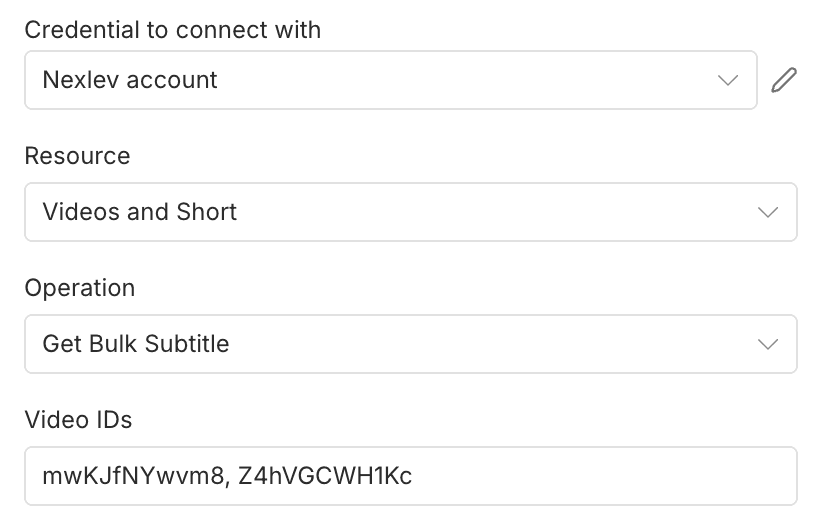
- Add the NexLev node to your workflow
- Under Resource, select Videos and Short
- Under Operation, select Get Bulk Subtitle
- Under Credential to connect with, select your NexLev account
- In the Video IDs field, enter the YouTube video IDs separated by commas (e.g.,
mwKJfNYwvm8, Z4hVGCWH1Kc)
Use Cases
- Multi-language Analysis: Analyze subtitle availability across multiple videos for localization planning
- Content Accessibility Audit: Check which videos have subtitles and in what languages
- Batch Subtitle Extraction: Retrieve subtitle URLs for multiple videos to download in bulk
- Language Coverage: Determine language coverage across a video library or channel
- SEO Research: Identify videos with subtitles for better search optimization
- Translation Workflows: Build automated workflows to process subtitles in multiple languages
- Compliance Checking: Verify that videos meet accessibility requirements with proper subtitles
- Content Localization: Identify which videos need additional subtitle languages
Best Practices
- Batch Size: Request subtitle data for up to 10 videos at a time (maximum limit)
- Error Handling: Always check the
successfield for each video in the results array - Retry Logic: Implement retry logic for failed videos with exponential backoff
- URL Expiration: Remember that subtitle URLs are time-limited and will expire
- Storage: Store retrieved subtitle metadata to avoid repeated API calls
- Processing: Process results asynchronously for large batches to avoid workflow timeouts
- Large Lists: For lists exceeding 10 videos, split them into multiple batch requests
- Translation Planning: Use the translationLanguages array to plan content localization
Example Workflow
Here's a complete workflow to process bulk subtitle data:
- Manual Trigger node - Add list of video IDs
- Code node - Format video IDs as comma-separated string
- NexLev node:
- Resource: Videos and Short
- Operation: Get Bulk Subtitle
- Video IDs:
{{ $json.videoIds }}
- Code node - Process each subtitle result and extract available languages
- Split In Batches node - Process results in manageable chunks
- Google Sheets or Database node - Store subtitle metadata
Comparing Single vs Bulk Subtitle Retrieval
| Feature | Get Subtitle | Get Bulk Subtitle |
|---|---|---|
| Videos per request | 1 | Up to 10 |
| API calls for 10 videos | 10 | 1 |
| Response structure | Direct subtitle object | Array with metadata |
| Error handling | Single point of failure | Individual video errors |
| Best for | Single video analysis | Batch processing |
| Rate limit impact | Higher | Lower |
Notes:
- The bulk subtitle operation processes videos in parallel for faster results
- Each video in the results array follows the same structure as the individual Get Subtitle operation
- Videos without subtitles will return
success: falsewith an appropriate error message - The
total,successful, andfailedcounts help you track the overall success rate - Auto-generated subtitles are indicated with "(auto-generated)" in the language name for each video
- Subtitle URLs are time-limited and will expire after the time specified in the
expireparameter - The
translationLanguagesarray typically contains 100+ languages for translation options - Consider implementing pagination for very large lists by splitting them into multiple bulk requests
- Use the HTTP Request node with the subtitle URLs to download actual subtitle content
Get RPM
Get Revenue Per Mille (RPM) data for a YouTube video. RPM represents the estimated revenue per 1,000 video views, providing insights into video monetization performance.
When to use this operation:
- Researching profitable content niches
- Analyzing monetization potential of video topics
- Comparing revenue across content categories
- Making data-driven content strategy decisions
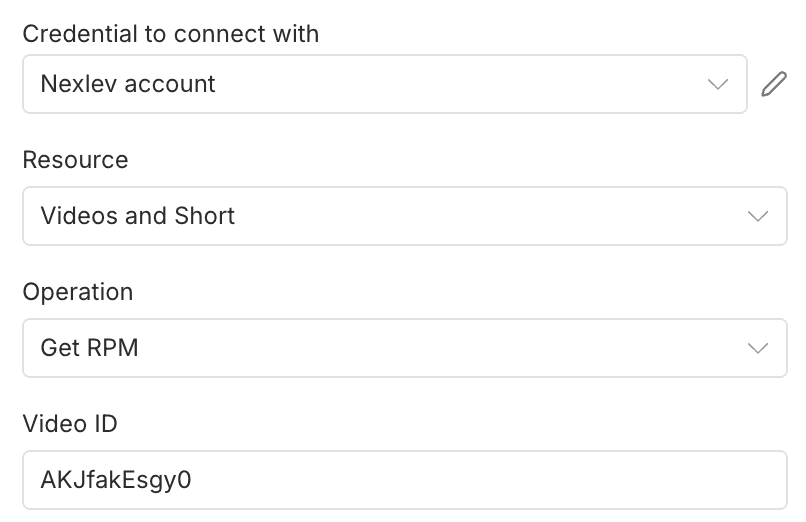
Configuration
- Add the NexLev node to your workflow
- Under Resource, select Videos and Short
- Under Operation, select Get RPM
- Under Credential to connect with, select your NexLev account
- In the Video ID field, enter the YouTube video ID you want to retrieve RPM data for
Use Cases
- Niche Research: Compare RPM across different video niches to identify profitable content areas
- Content Strategy: Analyze which types of videos generate higher RPM to inform content planning
- Competitor Analysis: Understand monetization potential of competitor videos
- Revenue Forecasting: Estimate potential earnings based on RPM and projected views
- Channel Optimization: Identify high-RPM topics to prioritize in content creation
- Market Analysis: Track RPM trends across different content categories
- Investment Decisions: Evaluate the monetization potential before creating similar content
- Performance Benchmarking: Compare your video RPM against industry standards
Best Practices
- Multiple Samples: Analyze RPM across multiple videos to identify patterns and trends
- Time Considerations: RPM can vary based on seasonality, ad demand, and viewer geography
- Niche Comparison: Compare videos within the same niche for more accurate insights
- Combined Analysis: Use RPM data alongside view counts and engagement metrics
- Regular Monitoring: Track RPM trends over time to identify changes in monetization
- Privacy Respect: Remember that RPM estimates are approximations, not actual creator earnings
- Content Planning: Use RPM insights to guide content strategy, not as the sole decision factor
Example Workflow
Here's a complete workflow to analyze video RPM:
- Manual Trigger node - Add video ID as input
- NexLev node:
- Resource: Videos and Short
- Operation: Get RPM
- Video ID:
{{ $json.videoId }}
- Code node - Calculate potential revenue based on RPM and views
- Google Sheets node - Log RPM data for tracking
- Filter node - Identify high-RPM videos (e.g., RPM > $5)
- Send Email node - Alert for high-performing niches
Error Responses
Use Cases
Leverage video data in your workflows for:
- Comment Analysis: Analyze video comments for sentiment, feedback, and engagement patterns
- Video Research: Gather detailed information about videos in your niche including performance metrics
- Content Strategy: Study successful videos' titles, descriptions, and engagement rates
- Competitor Intelligence: Monitor competitor video performance and audience engagement
- Transcript Processing: Extract video transcripts for summarization, translation, or content repurposing
- Engagement Tracking: Track likes, comments, and views over time for performance analysis
- SEO Optimization: Analyze video metadata including tags, titles, and descriptions
- Shorts Analysis: Track short-form content performance separately from long-form videos
- Accessibility: Use transcripts to create captions or make content accessible
- Content Repurposing: Extract transcripts to create blog posts, social media content, or summaries
- Revenue Analysis: Analyze RPM data to identify profitable niches and optimize content strategy
- Monetization Research: Compare RPM across different content categories to guide creation decisions
Workflow Examples
These examples show how to implement common use cases in n8n. Each workflow builds on the previous concepts, starting with simple queries and progressing to advanced implementations.
Example 1: Basic Video Information Workflow
Difficulty: Beginner | Time: 5 minutes | Use Case: Video research
- Add a Manual Trigger or Schedule Trigger node
- Add the NexLev node and configure it for Get video details operation
- Add a Code or Set node to extract specific fields (e.g., view count, likes)
- Add an output node (e.g., Google Sheets, Airtable, Webhook)
Next Steps: Once you have video information, try analyzing comments or extracting transcripts.
Example 2: Comment Analysis Workflow
Difficulty: Beginner | Time: 10 minutes | Use Case: Engagement analysis
- Add a Manual Trigger node with a video ID
- Add the NexLev node:
- Resource: Videos and Short
- Operation: Get Comments
- Add a Code node to analyze comment sentiment or extract insights
- Add a Filter node to select comments meeting specific criteria (e.g., like count > 10)
- Export results to Google Sheets or send via Email
Next Steps: Learn pagination to fetch complete comment datasets.
Example 3: Transcript Extraction Workflow
Difficulty: Intermediate | Time: 15 minutes | Use Case: Content analysis
- Add a Schedule Trigger node (e.g., daily)
- Add a Google Sheets node to read a list of video IDs
- Add a Loop node to process each video
- Add the NexLev node inside the loop:
- Resource: Videos and Short
- Operation: Get Transcript
- Add a Code node to combine transcript segments into full text
- Add an output node (e.g., Notion, Google Docs) to save transcripts
Next Steps: Apply the same pattern to bulk transcript extraction for efficiency.
Example 4: Shorts Performance Tracking
Difficulty: Beginner | Time: 10 minutes | Use Case: Shorts analysis
- Add a Schedule Trigger node
- Add a Google Sheets node to read shorts video IDs
- Add the NexLev node:
- Resource: Videos and Short
- Operation: Get Shorts Details
- Add a Code node to calculate engagement metrics
- Add a Google Sheets node to log performance data over time
Example 5: RPM Analysis for Niche Research
Difficulty: Intermediate | Time: 20 minutes | Use Case: Monetization research
- Add a Manual Trigger node
- Add a Google Sheets node to read a list of video IDs from different niches
- Add a Loop node to process each video
- Add the NexLev node inside the loop:
- Resource: Videos and Short
- Operation: Get RPM
- Add a Code node to calculate average RPM by niche and identify high-performing categories
- Add a Google Sheets node to create a comparative RPM analysis report
Next Steps: Combine multiple operations to build comprehensive video analysis workflows.
Example 6: Advanced - Complete Video Analysis
Difficulty: Advanced | Time: 30 minutes | Use Case: Comprehensive video research
This workflow combines multiple operations to create a complete video analysis:
- Get Video Details: Use Get video details to fetch video metadata
- Get Comments: Use Get Comments to analyze audience engagement
- Get Transcript: Use Get Transcript to extract content for analysis
- Get RPM: Use Get RPM to understand monetization potential
- Aggregate Data: Use Code node to combine all data into a comprehensive report
- Export: Send to Google Sheets, Notion, or your database
Benefits: Complete video profile with performance, engagement, content, and monetization insights in one workflow execution.
Best Practices
Performance Optimization
- Use bulk operations wisely: For processing multiple videos, use Get Bulk Transcript or Get Bulk Subtitle (up to 10 videos per request)
- Cache video metadata: Video details change infrequently, consider caching for 24-48 hours
- Batch comment retrieval: Use pagination efficiently to avoid unnecessary API calls
- Monitor quota usage: Most operations cost 🥞 1 quota per request; Get Bulk Transcript and Get Bulk Subtitle cost 🥞 5 quota each — batch wisely and cache results to stay within your plan
Common Mistakes to Avoid
❌ Don't: Make individual API calls for each video when processing lists ✅ Do: Use bulk operations (Get Bulk Transcript, Get Bulk Subtitle) for batch processing
❌ Don't: Fetch all comments when you only need recent ones ✅ Do: Use pagination and stop when you have enough data
❌ Don't: Download transcripts repeatedly for the same video ✅ Do: Cache transcripts and reuse them within your workflow
❌ Don't: Ignore pagination tokens for comments ✅ Do: Implement proper pagination loops to get complete comment data
Rate Limiting
- The API enforces rate limits to ensure fair usage
- If you receive a
429 Too Many Requestserror, wait for the time specified inretryAfter - Consider implementing exponential backoff for production workflows
- Distribute large batch operations over time to avoid rate limits
Troubleshooting
Video not found (404 error)
Problem: API returns "Video not found" error.
Solutions:
- Verify the Video ID is correct (should be 11 characters)
- Check if the video still exists on YouTube
- Ensure the video is not private or removed
- Try accessing the video directly on YouTube to confirm availability
Transcripts not available
Problem: Get Transcript returns empty or error.
Solutions:
- Verify the video has captions/subtitles enabled
- Check if captions are auto-generated or manual
- Try Get Subtitle to see available caption languages
- Some videos may not have transcripts available
Comments disabled
Problem: Get Comments returns no data or error.
Solutions:
- Check if comments are disabled on the video
- Verify the video allows public comments
- Some videos may have comments turned off by the creator
- Age-restricted videos may have limited comment access
Bulk operation partial failures
Problem: Some videos in bulk request fail while others succeed.
Solutions:
- Check the
successfield for each video in the results - Review the
errormessage for failed videos - Retry failed videos individually or in smaller batches
- Verify all video IDs are valid before making bulk requests
Invalid API key (401 error)
Problem: Authentication fails with "Unauthorized" error.
Solutions:
- Verify your API key is correct and active
- Check if your API key has the necessary permissions
- Ensure you've properly configured the NexLev credential in n8n
- Generate a new API key if the current one is expired
Subtitle URLs expired
Problem: Subtitle download URLs return errors.
Solutions:
- Subtitle URLs are time-limited and expire after a few hours
- Fetch fresh subtitle metadata if URLs have expired
- Download subtitles immediately after retrieving URLs
- Store subtitle content, not just URLs, for long-term use
Related Resources
- Quickstart Guide - Learn how to set up NexLev with n8n
- Channel Content - Retrieve channel information and video lists
- Similar Videos - Find videos similar to a target video
- Similar Thumbnails - Find videos with similar thumbnails
- Channel Analytics - Get detailed analytics data for channels
Support
If you encounter issues or have questions about the Videos and Shorts API, please contact our support team at contact@nexlev.io or refer to our troubleshooting guide.